Over the years I’ve developed a serious vi editor habit (mostly from my days working as a system administrator). I use it for coding in PHP, c, and perl because it is convenient and lightweight. Since gVim has been available for Windows, I have never had any issues running it on my home computer and that Edit with VIM right-click context menu item became my best friend. Until now that is. Windows 7 64-bit will run gVim as a 32bit application, but the context menu shortcuts are gone. Here is my workaround.
I found that there are two ways of doing this. One involves messing around with the registry (see Disclaimer), the other involves creating a shortcut.
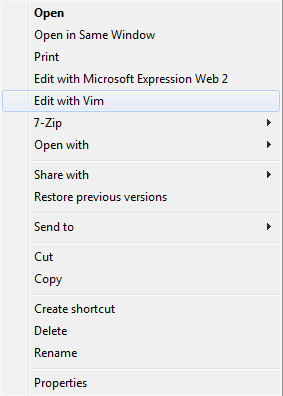
If you want to have the same context menu functionality you got from gVim in 32-bit Windows you’ll need to make the following changes to the [HKEY_CLASSES_ROOT*shell] key in the registry:
Windows Registry Editor Version 5.00
[HKEY_CLASSES_ROOT*shellEdit with Vim]
[HKEY_CLASSES_ROOT*shellEdit with Vimcommand]
@=”C:\Program Files (x86)\Vim\vim72\gvim.exe “%1”
If you are lazy you can simply download my registry export file by clicking here and merge it into your registry (see Disclaimer).
Don’t want to make changes to the registry? Then here is the alternative:
The Send To context menu is pretty customizable in both VISTA and Windows 7. You can add as many shortcuts to this context menu as you want simply by dragging and dropping them into this folder:
C:Users<user name>AppDataroamingmicrosoftwindowsSendTo
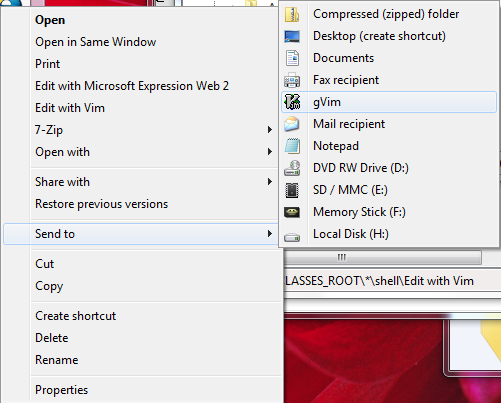
So simply adding a gVim shortcut here and voila, an albeit slightly less convenient gVim shortcut now exists on the right-click context menu.
UPDATE: As mentioned by several users via comments (thank you!), it looks like the “Edit with Vim” context menu option in Windows7 x64 is now going to be installed by default with the GVIM 7.3 package. I want to take this opportunity to thank to everyone for their kind words and helpful suggestions.
Comments
51 responses to “Context menu issues with gVim in Windows 7 x64”
Thanx for the fix!!
Thanks for the tips. I got gVim working this way. . .I did discover that either of these two methods open very slowly if they path is a UNC path to the file. If I map a drive it is fine though. \serversharefile opens in almost a minute in comparison to a couple seconds with a mapped drive. . .I didn’t have that issue on 32-bit vista (before this upgrade to Win7)??
Thank you!! I was really annoyed after installing Vim on my new Win7 install and the Edit with Vim option wasn’t there. Much much better now!
http://code.google.com/p/vim-win3264/ vim7.2 for windows 64
@noter
I tried this package, but it wouldn’t install the context menu item “Edit with Vim” in Windows 7 x64
And another thank you!
[…] Context menu issues with gVim in Windows 7 x64 […]
Thank-you very much! I really misssed this after installing Windows 7. I can’t edit without vi.
Anyway to get back the select two items and right-click so you get ‘Diff with Vim’?
@NateAppDataroamingmicrosoftwindowsSendTo). Now I can simply select two files, right-click->Send To->ExamDiff and voila I have the two files in ExamDiff highlighting the differences btw. the two. I’ll look at the VIM Diff functionality as a weekend project when I’m done with finals 🙂
I use a program called ExamDiff (just google it) for the diff functionality, but it’s a couple of extra clicks because I use it through the Send To Menu. Basically the program is is an executable file you can put anywhere. I put it in C: root, then I create a shortcut to ExamDiff.exe in my Send To folder (C:Users
Don’t forget the icon!
Windows Registry Editor Version 5.00
[HKEY_CLASSES_ROOT*shellEdit with Vim]
“icon”=”C:\Program Files (x86)\Vim\vim72\gvim.exe”
[HKEY_CLASSES_ROOT*shellEdit with Vimcommand]
@=”C:\Program Files (x86)\Vim\vim72\gvim.exe “%1″”
This was really, really helpful. Thank you so much!
Thanks for the fix. I was really starting to miss my “Edit With Vim…” entry!
Hi,
klasse, das habe ich bei Win7 vermisst, danke für die .reg Datei !
Lieben Gruss
Andreas
merci beaucoup!
I can’t seem to get the 64bit version of gvim (from Google Code) working even after modifying for ‘Program Files’ instead of ‘Program Files (x86)’. Getting error:
“This file does not have a program associated with it for performing this action. Please install a program or, if one is already installed, create an association in the Default Programs control panel.”
And FWIW I think the registry setting in the article is missing a trailing doublequote.
@Bob
Bob,
This article uses the 32bit version of gVim, not the 64bit version. I couldn’t get that to work either. The article illustrates how to get the context menu “edit with gVim” entry to work after installing the 32bit version of gVim on Windows 7 x64. The issue is that in Windows 7 the context menu change isn’t applied during the installation of the program.
As far as the registry change goes, I exported it from my registry so I think the quotes are correct, however, please note the disclaimer whenever making changes to your computer.
Cheers,
David
@David
Good to know, thanks. I had no idea how much I relied on the “Edit with Vim” til I switched to a Win7 machine.
One last note – this is likely obvious to many but – while I was resigning myself to having to use SendTo I noticed that …AppData… is a hidden folder in Win7. You’ll probably have to use “Organize”/”Folder and Search Options”/”View”/”Show hidden” to make it visible.
I thank you tremendously.
Thanks!! 🙂
thanks but the 64bit version works on my pc 😀
Will this also restore the “Edit with existing Vim” functionality?
An alternative, which also restores the “Edit with existing Vim” functionality, is to download the x64 build of vim from http://code.google.com/p/vim-win3264/wiki/Win64Binaries
This is linked to on the vim download page for windows at http://www.vim.org/download.php#pc
Thanks for the help!
Amen 😀
Your quick link worked perfectly. Thank you much.
Great, thank you 🙂
A small precision for non-specialists of registry:
the [HKEY_CLASSES_ROOT*shellEdit with Vim] and [HKEY_CLASSES_ROOT*shellEdit with VimCommand] should be created by right click > New > Key
The default value is then set to ”C:\Program Files (x86)\Vim\vim72\gvim.exe ”%1””
Ooops I meant “C:\Program Files (x86)\Vim\vim72\gvim.exe” “%1”
Thanks! Also, I found that I couldn’t get gvim to toggle between insert and move mode using the trusty esc key. I added a toggle command to the _vimrc (set im!), and strangely enough, the functionality is there. I need my vim!
Vi’ing since ’97
Hi,
Thanks for the tip, I’magain an happy vimmer 🙂
Thanks.
Dude! Thanks so much! I was wondering why I did not have this “Edit with Vim” in my context menu. Total lifesaver.
I set my vim to run as a server with all new files opened in new tabs using –remote-tab-silent
Windows Registry Editor Version 5.00
[HKEY_CLASSES_ROOT*shellEdit with Vim]
“icon”=”C:\Program Files (x86)\Vim\vim72\gvim.exe”
[HKEY_CLASSES_ROOT*shellEdit with Vimcommand]
@=””C:\Program Files (x86)\Vim\vim72\gvim.exe” –servername GVIM –remote-tab-silent “%1″”
if you copy and paste make sure to fix the double quotation symbol, otherwise windows will get confused.
Nice!
Thanks for this – very useful as I just installed 64bit Windows 7 and was missing the Edit with Vim option.
Thank you!
Seems only we sys admins like vi 🙂
Thanks for the tip, was looking for that menu entry!
Excellent tip!! Thanks for sharing.
Try my gvim x64 installer and directions for building:
http://ionipti.blogspot.com/2010/04/build-gvim-72-x64-and-create-installer.html
Solves all the usual problems in x64.
Hi Nachum,
would be great if you could integrate a silent switch as well. That would make things perfect.
Sascha
Adding my thanks for a great registry hack!
Back in the day I had all sorts of file extensions associated with Vim. Anything .txt, .log, and so on was associated with Vim. In the wonderful (sic) new world of Windows 7, I notice that I can’t just highlight a file and choose “Open With” and then browse to gvim.exe. I browse to it, but the file association has not changed. Have you encountered this? How’d you fix it?
Chris,
In Windows 7 I don’t think the Open With context menu option has been removed, it just isn’t available for files that aren’t associated with any application. If I right click an xml file I see the open with option because xml files are associated with xmlspy but if I right click a sql file, for instance, I don’t see an open with option because I haven’t associated it with any applications. I guess there’s a registry edit to restore the open with functionality if you’ve accidentally removed it from windows…that regedit code is located below:
Windows Registry Editor Version 5.00
[HKEY_CLASSES_ROOT*shellexContextMenuHandlersOpen With]
@=”{09799AFB-AD67-11d1-ABCD-00C04FC30936}”
[HKEY_CLASSES_ROOT*shellexContextMenuHandlersOpen With EncryptionMenu]
@=”{A470F8CF-A1E8-4f65-8335-227475AA5C46}
Just copy it into a txt file and rename it to .reg, then merge it into your registry.
David
Thanks for taking the time to publish this simple fix. Brilliant!
Yet another “Thank you!”
All those little things are becoming a real PITA when moving to win7/64..
I don’t need to do anything to get the context menu on my Win7.
I downloaded the setup file from ftp://ftp.vim.org/pub/vim/pc/gvim73.exe and then run as administrator. The context menu is added just like WinXP time.
GVIM is running as 32 bits since it is installed here:
C:Program Files (x86)Vim
Using Win7 Enterprise.
Thanks a lot, this fix is short and very helpful.
@ahsiang: Yes, it seems to be fixed as of Vim 7.3.
Thanks for the stellar tip!! I was definitely using this regedit for my other Win7 box but as ahsiang mentioned it looks like this has been fixed as of the most recent release of Vim 7.3. Although, setting gVim as your default editor is still really handy. Thanks again.
Thanks for sharing this information. I was stuck for such a long time and now this problem is solved.
[…] Found a link on the internet which describes what to do: https://davidvielmetter.com/?p=1094 […]
Correction for Windows 7 x64 edition:
@=””C:\Program Files (x86)\Vim\vim72\gvim.exe” “%1″”
Thanks.