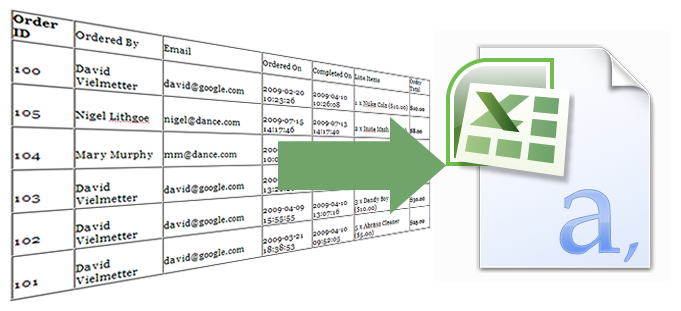
This post is a tutorial on how to export an HTML table in CSV format using a PHP script. The table is generated with data from a MySQL database containing orders, products and totals. I’ve dummed down the database and php code so it is easier to understand and will walk you through each step required to go export a table of orders in the database to CSV. It is true that you can do this directly from phpMyAdmin, but the point of this post is to teach the reader how to do it themselves. It took me a day of fiddling around and searching various forums and wished an article like this had been around then.First you’ll need a PHP development environment to test your application. You could use Adobe Dreamweaver, but if you’re on a budget like me you’ll probably like Komodo Edit and XAMPP. Both are free of charge and will do the job. The goal of this exercise is to quickly turn an HTML table into a CSV file we can later open with Excel or some other charting program.
[updated 3/11/13 for Brecht] To follow along, simply download the database SQL and PHP source files below (right-click & save target as… to download):



[Step 1] Now that you’ve got all the files, you’ll need to import the SQL file into a database called test using phpMyAdmin (provided with your XAMPP installation). Next you’ll need to copy the 2 php files into your htdocs directory or a subdirectory within hdocs in XAMPP. Open each file for editing and fire up your XAMPP control panel to launch Apache and MySQL.
NOTE: My test environment uses a blank password for the root MySQL account to authenticate to the database. If your setup uses a different password you’ll need to modify the blank password in table.php.
[Step 2] Navigate your browser to http://localhost/table.php or http://localhost/subdirectory/table.php and you should see a table of values. At the bottom of the page you’ll notice a button that says “Export table to CSV.” Clicking it should pop up a CSV file with the same contents as the table for you to save.
[Step 3] The basic concept of this export is to create a variable (I named it $csv_output) and to store all of your data in it separated by comma’s (,) and newline characters (n).
[php light=”true”]$csv_output .= $row[‘orders_id’] . ", ";
$csv_output .= $row[‘value’] . "n";[/php]
To jump to a new cell I append a comma (,) and to jump to a new row I append a newline character (n).
[Step 5] The only thing left to do now is to get my CSV variables ($csv_hdr and $csv_output) from the table.php file to the export.php file. To do this I simply use an HTML form and 2 hidden fields.
[html light=”true”]</pre>
<form action="export.php" method="post" name="export"><input type="submit" value="Export table to CSV" />
<input type="hidden" name="csv_hdr" value="<? echo $csv_hdr; ?>" />
<input type="hidden" name="csv_output" value="<? echo $csv_output; ?>" /></form>
<pre>
[/html]
Now I can simply get the contents of my variables using $_POST in my export.php file, and continue with exporting my CSV file.
[php light=”true”]
<!–?php /* This file will generate our CSV table. There is nothing to display on this page, it is simply used to generate our CSV file for download in our browser and then exit. That way we won’t be re-directed after pressing the export to CSV button on the previous page. */ //First we’ll initialize an output variable for the content of our CSV file. $out = ”; //Next we’ll initialize a variable for our filename prefix (optional). $filename_prefix = ‘csv’; //Next we append our POST header data from table.php and append it to out. if (isset($_POST[‘csv_hdr’])) { $out .= $_POST[‘csv_hdr’]; $out .= "n"; } //Then we grab the table data from table.php and append it to out. if (isset($_POST[‘csv_output’])) { $out .= $_POST[‘csv_output’]; } //Now our out has nearly all the parts of a file, we just gotta create/name it. $filename = $filename_prefix."_".date("Y-m-d_H-i",time()); //Generate the CSV file header header("Content-type: application/vnd.ms-excel"); header("Content-Encoding: UTF-8"); //Added to deal with UTF character support header("Content-type: text/csv; charset=UTF-8"); header("Content-disposition: csv" . date("Y-m-d") . ".csv"); header("Content-disposition: filename=".$filename.".csv"); echo "xEFxBBxBF"; // UTF-8 BOM added for UTF character support //Print the contents of out to the generated file. print $out; //Exit the script exit; ?–>
[/php]
That’s it folks. That’s how to export an HTML table to CSV in 5 easy to understand steps.
Comments
88 responses to “Convert an HTML table to CSV using PHP”
Thanks for sharing this post. Very interesting and useful!
Excellent script..Thank you so much for sharing.
I Have a problem with setting csv_output. I have a data in while loop and i want it to be in the same cell when exported. I tried adding “\n” in each of data output but when exported to excel/csv it creates a new row instead of staying in the same cell. Heres part of my code:
if (mysql_num_rows($result3) > 0) {
// output data of each row
while($row3 = mysql_fetch_assoc($result3)) {
$csv_output .= $row5[‘Location_Name’] . ” – ” . $rowcount . ”; <— This the problem it crreates new row in excel instead of break and staying in the same cell…
}
sdsd
Thanks a lot this is very useful for me.
I’m not getting my table to fill up. Just this across the top of the page:
0) { //While our rows array has stuff in it…meaning it has column data, lets print it to each of the cells in our table while ($row = mysql_fetch_assoc($result)) { ?> ?>
then the table with an error in each cell.
Great work. But i have a problem when i click export to cvd, the downloaded file has this
instead of the data. Why?
instead of what is in this variables.
I don’t understand it..
it doesn’t work on wordpress