The other day I got an email from someone who had trouble initially getting the ATI Remote Wonder II remote control to work with Windows. Reading it I remembered that I also had issues initially getting my remote to work. I had bought it used off of eBay and feared the worst after it wouldn’t connect once the drivers had been installed. Here’s how I fixed it:
[step 1] Go to the ATI/AMD Support Website and download the latest drivers (3-04_rw_enu.exe) for the Remote Wonder II.
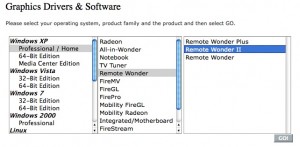
[step 2] With the receiver UNPLUGGED, install the drivers.
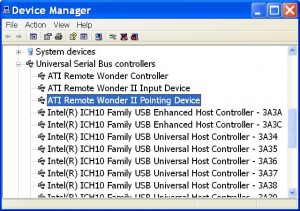
[step 3] Plug in the receiver and let windows auto-detect hardware install the drivers automatically. On my system (Windows XP) I noticed that initially after the receiver drivers finished installing the remote was still not functional (i.e. using the cursor button did not move the mouse pointer).
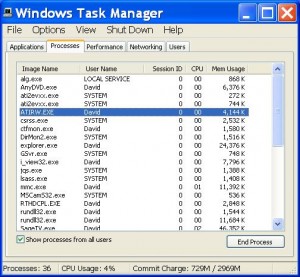
[step 4] Launch the windows Task Manager and end task to the following program: ATIRW.exe
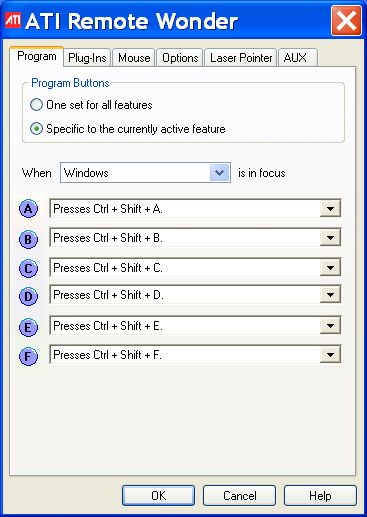
[step 5] Launch the ATI Remote Wonder utility from the start menu. You should see a small remote control icon pop into your notification area (task bar). At this point pressing the cursor button on the remote should move the pointer around on your screen. If not, make sure you press the PC button on the Remote and try again.
[step 6] Now you can double click the remote icon in the notification area to further configure your ATI Remote Wonder II PC remote. If you’re using SageTV, check out my article on configuring the RW Key Factory plugin.
That’s it.
Comments
3 responses to “Resolve remote wonder II connection issues”
Hi Dave! Thanks… this resolved my issue! Thank you for posting your findings!
Awesome, Dave. I was going nuts trying to figure this out. Appreciate the assist.
Hello ty for this i did what u said and the icon still not showing in taskbar u see atirw in task manager but not in task bar I’m using win xp ps3 any more suggestions