My MacBook Pro has been running out of hard disk space for some time. I’m down to less than 1GB of free space on both my Macintosh HD and the Boot Camp Windows 7 partition. So I hopped on NewEgg and got a WD Black 500GB notebook hard drive and 8GB’s of RAM for $150. Installing the RAM was a piece of cake, but moving the data over to the new drive proved much more tricky. Here’s how I finally got my 250GB dual boot drive cloned over to the new 500GB drive.
[the problem]
You have a Boot Camp partition on your mac hard disk so you can’t just do a straight clone of the entire drive using Carbon Copy Cloner or Super Duper (those programs don’t clone the Windows partition). Since you also have a larger drive, you don’t just want to do a sector by sector clone leaving you with a new drive that has the same partitions as the old drive.
[the solution]
This solution will allow you to copy your partitions from your current dual boot Mac setup with Boot Camp to a larger drive but re-size the partitions at the same time. I went from a 250GB drive partitioned into 200GB Mac and 50GB Windows to a 500GB drive with 380GB Mac and 120GB Windows partitions.
[step 1] Attach the new drive to your MacBook using a SATA t0 USB adapter or a USB hard drive enclosure.
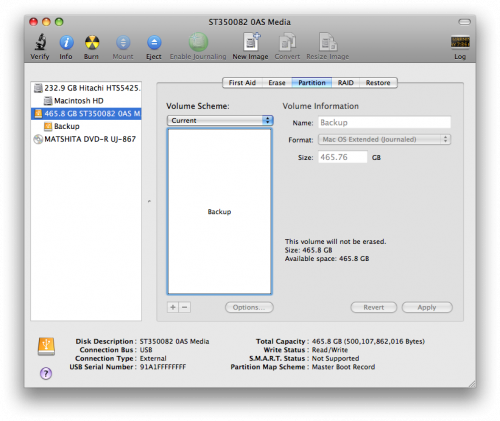
[step 2] Format the new drive using a single partition as Mac OS Extended (Journaled) file system.
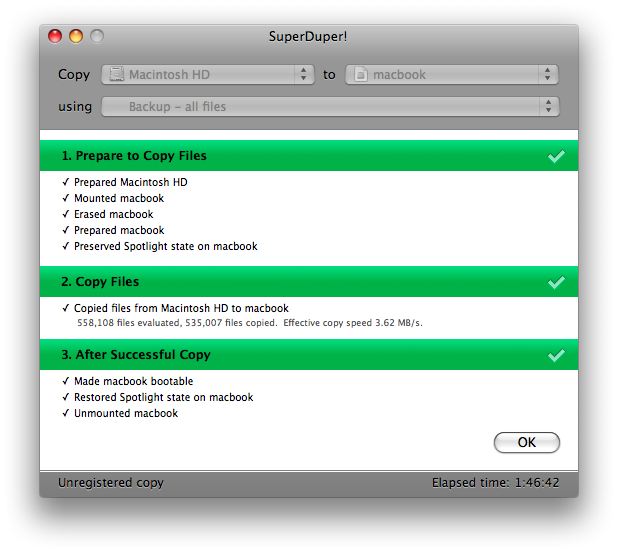
[step 3] Download Carbon Copy Cloner or Super Duper (I used Super Duper) and clone your existing Mac hard drive to the new USB Drive.
[step 4] Install the new drive into the computer and boot it. It should boot up the same way your Mac booted up with the old drive but you won’t see your Boot Camp partition.
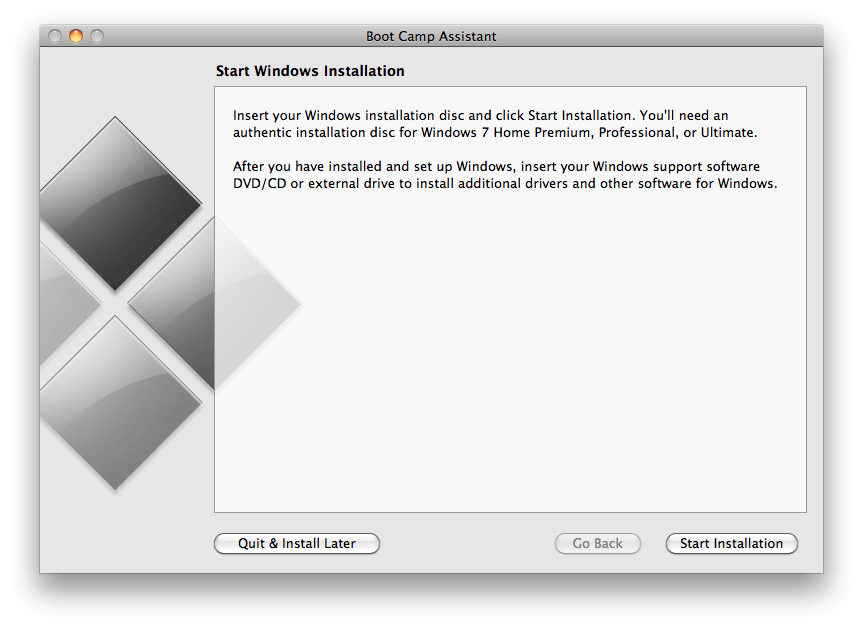
[step 4] Run the BootCamp Assistant and create a Windows partition with the desired size on the new primary drive. At the end of the wizard select Quit & Install Later.
[step 5] Attach the old drive via a USB enclosure or SATA to USB adapter. Check to make sure you can access the old Boot Camp Windows partition.
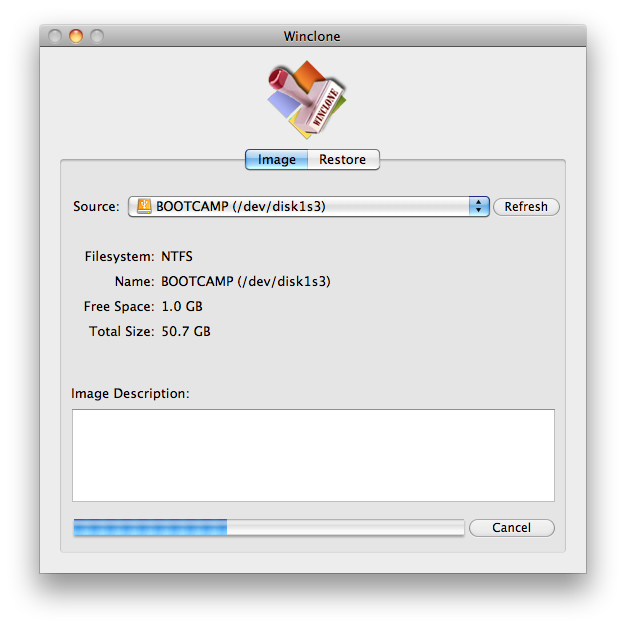
[step 6] Download & install WinClone 2.3.3 and create an image of the USB attached Boot Camp Windows partition on your old drive. You can save the image on a network drive if you need additional space or just put it on the mac partition of of the old USB attached drive.
[step 7] Restore the WinClone image to the Boot Camp partition you created in [step 4].
Comments
16 responses to “Clone Mac with Boot Camp to a new Hard Drive”
good post! …I would add not to forget to use GUID in options when formatting the drive on step 2, otherwise BootCamp won’t be able to create a new partition
I feel cloning as the best to have a backup of Mac data, and stay un affected even in case of severe data loss situation. Although the disk utility can image Mac drive but it can’t clone it. So, I use Stellar Drive Clone to create clone of my Mac.
David,
I fins myself in a slightly different position with a hard drive that is starting to fail, and wanting to replace it with an SSD. My OS is Leopard, on a 2007 MacBook Pro. I’m using it it primarily as a Windows XP Pro machine though. What’s the best way to clone it? I think I can’t use Carbon Copy with Leopard, so I can’t seem to figure out what to do.
Thanks!
The only viable alternative to Carbon Copy Cloner I’ve used is Super Duper (http://www.shirt-pocket.com/SuperDuper/SuperDuperDescription.html), I’d give that a shot.
Hope it helps.
David
Thanks David. I might just upgrade to Snow Leopard, since it’s only $20. It’s supposed to run better anyway.
Great article. My daughter has a failing drive on her new Macbook and I will be using this article for the restore process. Since Windows 7 has the option to create an image copy to an external device and a restore CD to be used to boot to start the restore, is there any reason for Winclone? Of course that means we would have to have the failing drive up long enough to create the image backup. Any thoughts on this?
Mel,
Winclone is strictly for backing up your windows bootcamp partition from within Mac OSX. Winclone is a Mac Application that seeks out the bootcamp partition on your Mac’s hard drive and makes an image of it. The image can only be restored to another bootcamp partition on a new drive using winclone. I have not used windows 7’s native image backup and restore feature on a mac, so I cannot offer any meaningful advice about that.
Cheers,
David
Thanks David! This is not the first task that you have helped me with!
A couple of notes that may be useful to all…..
I was simply upgrading my HD to a SSD on my late 2010 MBP running Snow Leopard and XP on Bootcamp. Using CCC, I did everything as explained except when I went online to download Winclone I was offered the 3.5 version for $19.95. I bought it and it did not work. It gives an error telling you that the disk is formatted wrong. I then went back online and downloaded the 2.3.3 version and tried again.
Done on the first pass and everything works as expected.
3.5 might work on later OS and Windows versions but not on Snow Leopard and XP.
Thanks again.
This is a great post … A great solution to a quite undocumented user need.
I’m upgrading my 7 years old MacPro to SSD and more RAM and was quoted 1500euro for upgrade … managed to bring it down to 500euro by doing my self.
I would have not been able to do the last step to clone my bootcamp disk without that post though …
Thanks a ton
[…] […]
I used clonezilla and it cloned may mac os, my two windows os’s and my linux partition as well. I highly recommend it.
Thanx.
I am trying to use clonezilla to backup my bootcamp partition. The multiboot pendrive is giving boot error, could you please explain how you started clonezilla application in Mac?
Thanks,
Al
Yea, the bootable pendrive iso of clonezilla probably won’t work on your mac. You could try a different program to backup your bootcamp partition while booted into the OS X side. One option is WinClone as I said in my article, but there’s other solutions. I’m just not sure clonezilla will work for you.
Hope it helps,
David
Hi,
is possible use the your workaround if my origin MAC partion is greater than the new SSD disk.
First of clone MAC partion I thought to resize it and after clone it.
What do you think about it ?
Regards,
Daniel
This can be a pain in the ass. Technically if you use Carbon Copy Cloner (CCC) to backup your Mac Volume and the total of that CCC backup is less than your SSD, you should be ok. In other words if your current drive is 500GB and you are using 100GB of 500GB, then your CCC backup should be around 100GB and you can restore that to a drive that is 128GB.
CCC can back up your windows partition, but the partition will not be bootable if you use CCC to move your windows partition to a new disk. So you need another application for that like WinClone. Problem there is WinClone is no longer free. It used to be, but now they charge for it.
Also some users have reported to me that the new Winclone no longer works like I described in my article. Two users went and purchased it and couldn’t get it to work to restore their bootcamp partition. So long story short… the easiest thing might be to back your mac up to a time capsule and put the new hard drive into the mac and restore it from the time capsule. Then just re-run the boot camp wizard and re-install your windows from scratch.
Take it for what its worth,
hope it helps.
David
Hi David,
I found your informative post through google and face a similar situation, perhaps you might be able to assist, Here is my situation:
I recently upgraded the standard HDD in my early 2011 Macbook Pro to a SSD. Instead of cloning as most contributors to several posts have done, I performed a CLEAN install of Mac OS on the new SSD. I have installed the SSD and things are running smooth on the Mac side; however, I am still needing to boot into Windows to run certain programs. On my old HDD I had a Bootcamp Partition where I booted to. Since I performed a clean install of Mac OS to the new SSD, there is no Bootcamp partition. I was hoping I could boot into the Bootcamp partition on the old HDD when I Restart-Opt on MAc. The old HDD image is recognized along with the new SSD and an alternate External I have, but does not recognize the Bootcamp partition as before. I have the old HDD plugged via SATA, and when booted in Mac Os the old HDD and old Bootcamp partition still appear under my Finder window.
Do you know of a method where I can boot into the Bootcamp partition, or what must I do to do so. I would like to not partition the new SSD if possible, and perhaps use the old HDD for a dedicated Windows partition to boot from if connected. Any info helps. Thanks in advance!