So you have a bunch of contacts on your iPhone and you want to get them into Outlook or vice versa. The contacts I’m talking about here are ones that are not part of a synced account but have accumulated in Microsoft Outlook with a POP3 account for example. Here’s how to do just that:
NOTE: This article has been changed because the iCloud control panel for Windows has been modified by Apple. The original instructions in this article are no longer fully applicable.
[requirements]
- A PC running Microsoft Windows 7 or 8
- Microsoft Outlook (I used 2010)
- iOS 5 and iCloud
[procedure]
[step 1] Open the Settings app on your iPhone or iPad device’s home screen.
[step 2] Tap the iCloud tab.
[step 3] Log in to iCloud using an existing Apple ID or MobileMe account, or create a new account from the screen.
[step 4] Ensure that Contacts are synced with iCloud by flicking the switch beside it to the “on” position.
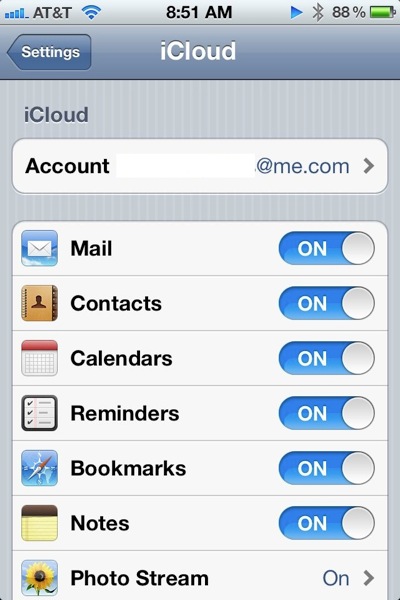
[step 5] Close Microsoft Outlook on your PC. Now download & install the iCloud Control Panel for Windows from Apple’s Website.
[step 6] Open the iCloud from the Start Menu (under All Programs) and sign in with the Apple ID and password.
[step 7] Place a check mark into the box that shows Mail, Contacts, Calendars & Tasks and click Apply.
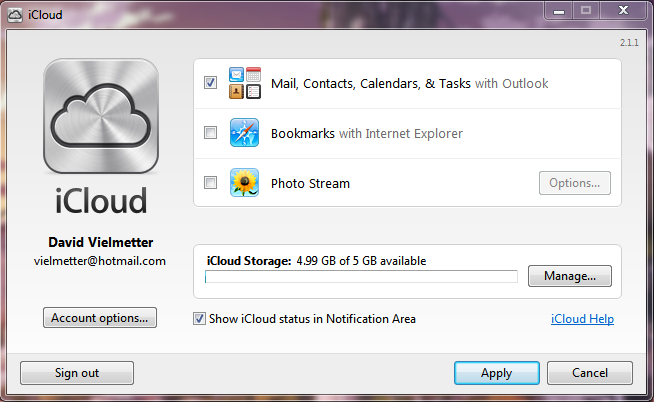
You should notice the following message shortly after clicking the Apply button.
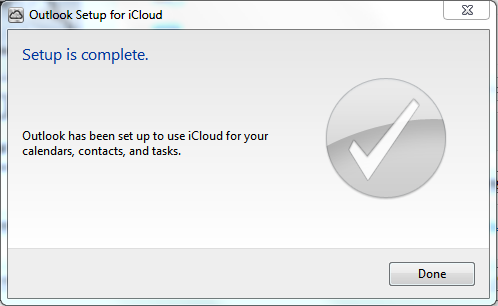
[step 8] Close the iCloud Control Panel and open Microsoft Outlook.
[step 9] Click Contacts on the left hand Navigation pane. Notice the new iCloud contacts items.
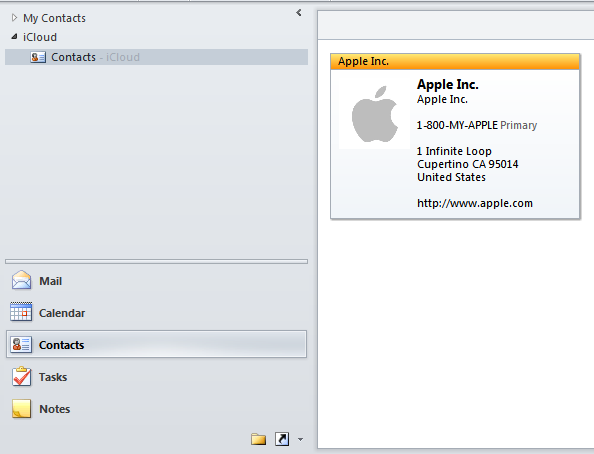
[step 10] Simply select all contacts in this folder and copy them them to any other folder in Outlook or vice versa. The easiest way to do this is CTRL+A to select all, CTRL+C to copy them all to the clipboard, then CTRL+V to past them all into the destination folder after selecting the new location.
That’s it.
–UPDATE– This information is no longer valid. The latest release of the Apple iCloud Control Panel for windows v2.1.1 utilizes a different mechanism to tie into Outlook.
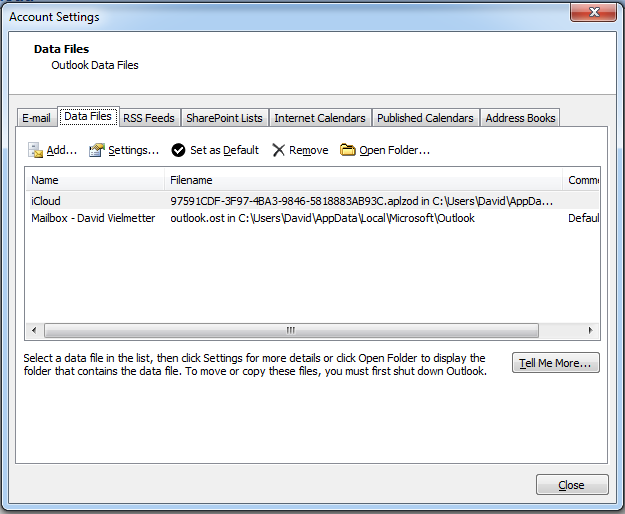
Some of you have been saying that this procedure doesn’t work right on various other system configurations. I’ve tried running the above steps on Windows 7 x64 and Outlook 2010 and Outlook 2007. Both behave identically in the fact that when the iCloud Control Panel is setup to sync JUST CONTACTS, an APLZOD file gets mounted in Outlook which contains your iCloud contacts as shown below:
Outlook 2007:
In the Outlook Folder list it looks like this:
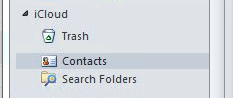
Any Contact you add to this folder will automatically be added to your iCloud. So if you’re wanting to put Outlook contacts on your phone, this is how you can do it…simply copy contacts from your Outlook Contacts folder to the iCloud Contacts folder.
If you’re wanting to import iCloud contacts to Outlook, simply copy contacts from the iCloud Contacts folder to your Outlook Contacts folder.
Troubleshooting:
If you’re getting errors or no contacts are downloading from iCloud and you know you have contacts there, follow these steps:
[trb 1] On your iPad or iPhone go to contacts and select the iCloud contact group. Ensure that you have contacts in this group. If none exist there, then this is why none get imported to Outlook.
[trb 2] Try un-checking the Mail, Contacts, Calendars & Tasks box in the iCloud control panel and click Apply. This will undo the sync between outlook and iCloud control panel. Then click sign out and close the tool. Then try the procedure above again from the beginning.
Comments
116 responses to “Export iCloud contacts to Outlook”
Thanks so much for your help! Totally Awesome!
I followed the steps in your solution to export contacts from iCloud to Outlook Currently using Windows 7 (64 Bit) with Office 2007. I downloaded the iCloud control Panel and followed the steps as outlined in your post. After placing a check mark in the box next to Nail, Contacts, Calendars and Tasks, I clicked on “Apply”. This took me to a screen titled Outlook Setup for iCloud. I placed a check mark beside All Calendars, Contacts and Tasks.
First thing that happened is a message saying that 414 items were being downloaded; then it said that Calendar was being downloaded; then Home was being downloaded. This last step took a couple of minutes or so after which I got a message saying “Your setupcouldn’t be started because of an unexpected error”.
Very frustrated as i tlooked as though things were going exactly as planned.
HELP!!
Did this happen with the latest version of iTunes? If not, I’d try updating iTunes and iTunes control panel for windows. Then try again.
Did step by step,
works perfect.
thanks
At last – finally an article that worked for me! I searched dozens of articles and they all missed one important point: sign out of iCloud and sign back in. Thank you!
I have seen some similars problems.
Nobody has been able to help me, including apple support.
I copy what I have posted in other forum. thanks in advance.
“Good afternoon,
And sorry for my english
I have iphone 6 and a PC with w7 and outllok 2007. All was working well. I had, through icloud and outlook, my contacts and agenda, sync
Mails went though my server to iphone and PC
Two days ago I changed my PC, new one. The Pc came with w7 and outlook 7 again. I do not know which release I had before,
I downloaded icloud from Apple. When I execute the program, and is loading, I can see all options (idrive, photos, calendar-mail-agenda, etc, but when the program is loaded 100%, the option mail-contacts.., dissapears. Then, as I can not select, no options of icloud appears in outook
I have installed icloud in other Pc we bought 2 days ago, as well, and happens the same. W7 and office came with the new computers
In other PC, that I fomatted and installed w7 and office (Yesterday and casual, same releases),and is happening the same.
I have not seen anything similar in internet. Yesterday I called apple, I was 3 hours with them, but they could not do anything.
Any ideas??
thanks in advance
I hope you understand what I am saying”
Hi Bitel,
Chances are you had an older version of icloud for windows on your old computer. The latest version of iCloud for Windows does say it’s compatible with Outlook 2007 and later, so you should be ok on your new PC as long as Outlook is at Version 2007 or higher.
Here’s what I want you to try first:
1. Close Microsoft Outlook.
2. Open iCloud control panel and sign out of your icloud account.
3. Uninstall iCloud control panel using Programs and Features in control panel.
4. Run Windows Update and apply any missing Microsoft Office updates/service packs.
5. Download iCloud for Windows here: http://support.apple.com/kb/DL1455
6. Ensure Microsoft Outlook is closed.
7. Install icloud for Windows.
8. Sign-in using apple ID.
9. See if you still have no options to sync contacts and calendar.
Cheers,
David
Thaks for your quick ansver, David.
I have a new Pc, windows 7 and office 2007. Theorically icloud has to work without problems.
Icloud, of course last version.
And nothing.
I have done all you have told me, and nothing.
I have tried with older versions. Nothing happens.
Version 2xxx,f icloud, do not install, perhaps because now I am with 64, bits.
When icloud is loaded 100% in my PC, and the option mail-calendars-agenda dissapears, i forgot to mention than appears a message (without links) that says something similar to “to use mail, contacts and agenda use outlook7 or higuer.2003 is not working”
But I have w7 and outlook 2007, for sure.
Any ideas???
Good afternoon,
I have solved the problem.
The machine had w7 and office2007, but after that, I have installed excel 2003.
This has been the problem.
In my old machine, I did the same, but I installed excel 2003 first and later, office 2007.
My good, what a headache
[…] Export iCloud contacts to Outlook | David Vielmetter – If you’re wanting to import iCloud contacts to Outlook, … Does this actually copy iCloud contacts to Outlook, or is the iCloud … Oulook a small grey outlook icon appears in your notification area for a little while and may remain there for a bit after the Outlook window has disappeared. […]
[…] Export iCloud contacts to Outlook | David Vielmetter – If you’re wanting to import iCloud contacts to Outlook, … It’s a mess…..can i turn off “contact to icloud” on my pc and restore my contacts with my old blackberry destop manager? And then can i icloud my iphone and ipad … […]
[…] Export iCloud contacts to Outlook | David Vielmetter – Does this actually copy iCloud contacts to Outlook, or is the iCloud listing visible in Outlook but not … I’ve lost all my contacts when I tried to merge my contacts with Gmail and … I want iCloud data back on my Outlook. My iCloud Contacts apear as zero at the iCloud Panel but I have … […]
[…] Export icloud contacts to outlook | david vielmetter […]
[…] Export iCloud contacts to Outlook | … – David, Thanks for posting instructions for downloading contacts from iphone/icloud to Outlook. I am unable to duplicate your steps. I’m good until step 7, but I …… […]
[…] Export iCloud contacts to Outlook | David Vielmetter – Does this actually copy iCloud contacts to Outlook, or is the iCloud listing visible in Outlook but not actually in a file in Outlook? Recently I added three new …… […]
[…] https://davidvielmetter.com/tricks/importing-icloud-contacts-to-outlook/ […]
[…] https://davidvielmetter.com/tricks/importing-icloud-contacts-to-outlook/ […]
Win7 Ultimate 64 bit
Office Pro Plus 2010
Icloud control panel V# 4.1
A huge warning for those considering going from Outlook to using Icloud for your contacts.
I had been running icloud for various reasons in the past, but had not enabled sharing contacts with Outlook.
About 2 years ago I thought I would explore letting icloud manage my contacts. Little did I realize and Apple does not warn you that by enabling the contacts that it would move and delete, not copy all contacts and in the process also strip/delete all embedded attachments in the notes section of each contact like spreadsheets/text files etc. section from Outlook and throw them in the bit bucket.
There is no warning really of what it is going to do and then its too late.
What happened:
1) Many of my Outlook contact cards had attachments within the notes section, It stripped these attachments without warning of any kind and they are gone forever. No words to describe this act of invasiveness. Thinking back, at the time I could have re-loaded my PC from a backup but I must not have had time before a road trip.
2) It will not allow me to move the 2500 contacts with notes gracefully back into Outlook other than 1 at a time and this could take a very long time.
3) Apple support says I cant believe we did that to you and there is nothing we can do to help.
4) Many years later they still have not made their export utility work correctly and if your reading this post I feel for you…
5) The situation Apple has put me in is truly unbelievable… and words cannot describe the frustration
6) There are many posts on the Web about this problem and all of the forums seem to agree that it is a hit or miss proposition to return to the old state minus the attachments that were tossed by Apple and they are all workarounds that Apple should have by now fixed on their own.
I have transferred my contacts back into my outlook folder but how do I delete the I-cloud folder since there is nothing in it now???? I have deleted the I-cloud program from my computer already.
[…] Export iCloud contacts to Outlook […]