Thanks to the super awesome Google Calendar Events plugin for WordPress by Ross Hanney, creating a this beautiful NCAA basketball game schedule took only five minutes. Beyond displaying game info, this it also demonstrates how easy it can be to display pubic Google calendar events with your own CSS flair in WordPress:
If you have a Gmail, you already have a Google calendar. Just create a publicly shared calendar within Google Calendar to use the Google Calendar Events (GCE) plugin with WordPress. For the purposes of this article, I have created my own public Google calendar and imported the March Madness Basketball events into it. I also installed the GCE plugin for WordPress and configured it to use that shared Google Calendar.
Here’s how you can do it:
[step 1] Publicly share a Google Calendar and note down the URL of the XML feed.
[step 2] Install the GCE plugin for WordPress.
[step 3] Configure the GCE plugin.
- Click Settings -> Google Calendar Events.
- Click Add Feed.
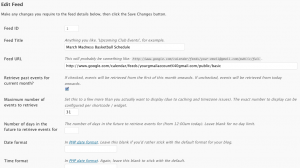
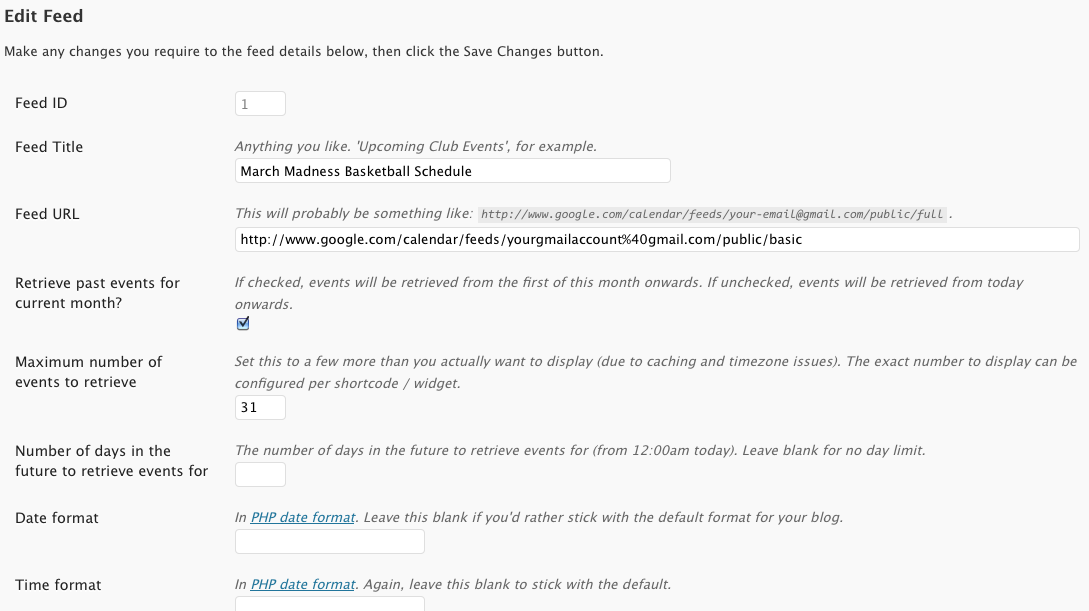
- Paste the URL to your public Google Calendar feed into the Feed field (the video shows you how to get it), set any feed related preferences and click Save.
- On any page or post use the following shortcode to embed a GCE calendar.
([)google-calendar-events id="1" type="ajax"(])
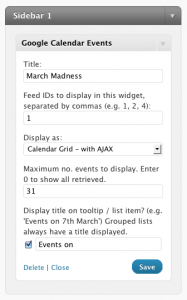
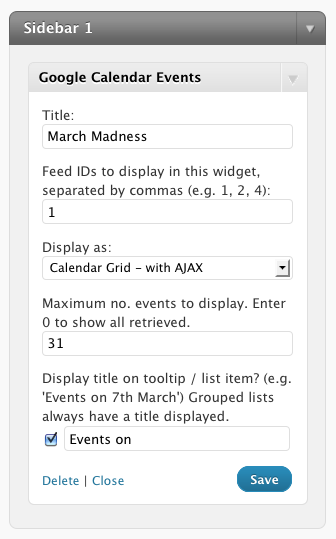
- Alternatively you can create a GCE widget and display it in the widget area of your theme.
That’s it.
Comments
10 responses to “March madness basketball schedule”
Is there a way I can import this calendar into my own googlecalendar?
Absolutely! Here is the ZIP file containing the 2011 ICS calendar file.
Hope that helps.
[…] calendar that displays events from your maintained shared GC: [step 1] Watch the video in my previous GCE post to find out how to share a GC and import existing events into it. Copy the link to your GC feed to […]
Is there a ZIP for 2012?
I will post one shortly.
Here is the schedule you can import to iCal or Outlook. It will change for Saturday and Sunday, so you’ll want to re-download later…https://davidvielmetter.com/wp-content/uploads/2011/03/2012_march_madness_schedule_so_far.ics
2013 March Madness calendar ready???
yes please a 2013 calendar would be great as you are the only positive hit i’ve had in 2 days
If you enter (2013 march madness bracket) into a Google Search, they’ve got a nice schedule there. I’m too busy with work this year to get a downloadable ical version up. You can see the google version here on my site at https://davidvielmetter.com/tips/2013-march-madness-bracket-schedule/
.
Cheers,
David
If you enter (2013 march madness bracket) into a Google Search, they’ve got a nice schedule there. I’m too busy with work this year to get a downloadable ical version up. You can see the google version here on my site at https://davidvielmetter.com/tips/2013-march-madness-bracket-schedule/
.
Cheers,
David