The other day a customer asked me how quickly apply some sort of protection to thousands of PDF files so that they could not be changed or printed. Challenge accepted I said. Here’s how:
[requirements]
Adobe Acrobat Professional
[procedure]
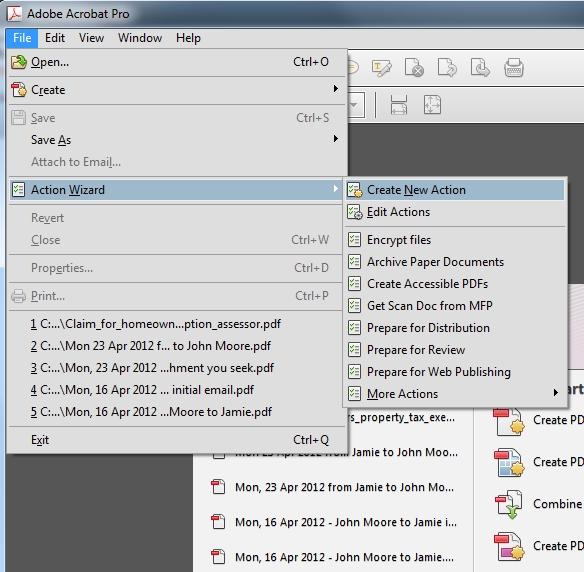
[step 1] Open Adobe Acrobat Professional. Then click File->Action Wizard->Create New Action
[step 2] Expand the Protection section and click Encrypt.
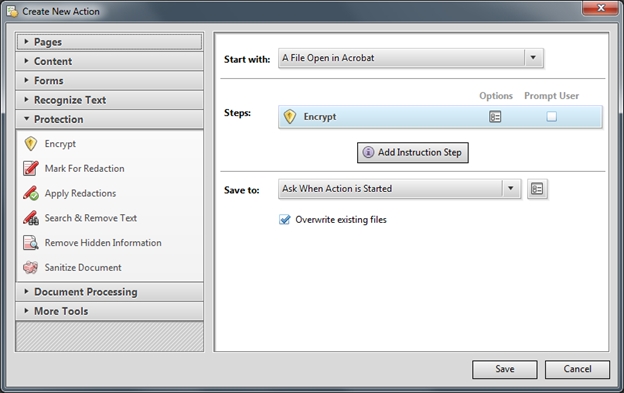
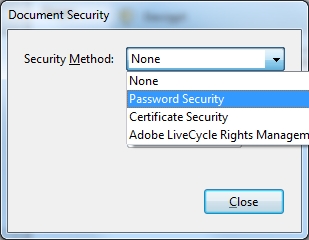
[step 3] Click the Options button on the Encrypt step and select Password from the dialog that appears. NOTE: You may also use a certificate, but this involves more steps I won’t cover here.
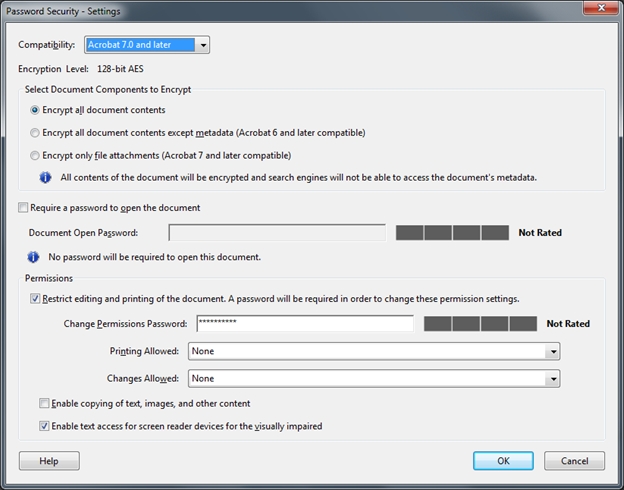
[step 4] Check the Restrict Editing… check box and specify a password (and confirm it). You can restrict both document printing and changes or either feature independently. NOTE: Changing the drop-down to NONE (as shown) indicates that the feature will be restricted…bad UI design. When finished, click OK.
[step 5] Click Close, then click Save and enter “Encrypt Files”.

You’re now done creating your Batch Action which can be applied to a single file, multiple files or an entire directory (folder) of files.
[step 6] Click File->Action Wizard->Encrypt Files
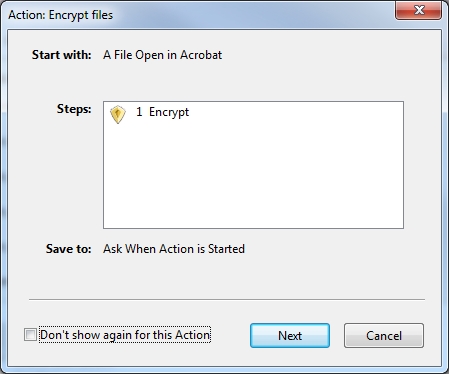
[step 7] Click Next and Add the files you want to encrypt. NOTE: you can Add a single file, multiple files or an entire folder of files. Then click Next.
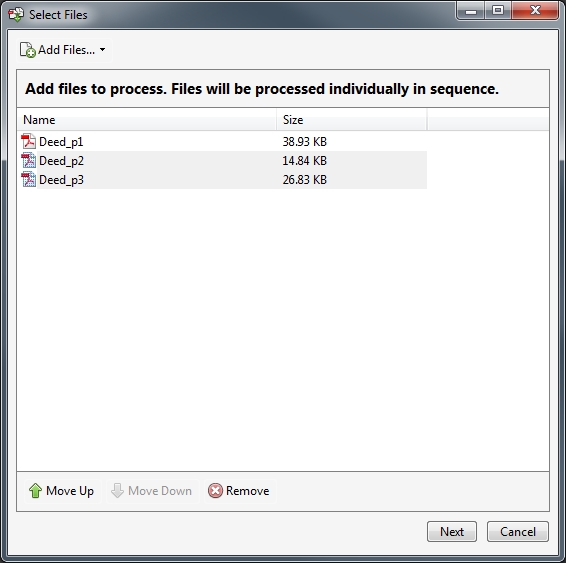
[step 8] Click Next to begin the encrypt batch action on the files you’ve added. When Acrobat has completed your Action you’ll see a message stating that the process is now complete.

That’s it.
Comments
12 responses to “Batch encrypting PDF documents in Acrobat Professional”
Awesome tip! Saved me at least an hour!
Which version/year is that? Mine is Acrobat Reader 9 Pro and does not have Action Wizard at all! :O can you help please?
A.
The version in this tutorial is 10 or X Professional.
I don’t think standard has this functionality and I’m not sure where to find it in v9. Sorry.
Cheers,
David
According to Acrobat 9 documentation, batch encrypting may be possible using a PDF portfolio File > Modify PDF Portfolio > Secure Portfolio…not sure how this would work since I don’t have Acrobat 9 Pro.
Cheers,
I have Acrobat X Pro.
I would like to take about 100 Word Documents and encrypt the doc with a password.
It would have to be non-interactive process in a scheduled task.
is there any command line executable to accomplish this task?
I have locked the printing & editing for a batch but How to reverse it back for the whole batch?
Great question. I assume you’d go through the entire procedure and select None for the security method.
Cheers,
David
Do you have any idea how can I do this on Acrobat XI? on X I had no prblem but on XI I can’t encrypt multiple pdfs
I would like to encrypt a batch of pdf documents each with its own password.How do i go about it?I am using the adobe acrobat pro
how about different passwords for each file?
This functionality does not natively exist in Adobe Acrobat batch processing. You have a couple of options:
1. Use command line utility like PDF Toolkit: https://superuser.com/questions/426302/pdf-password-protection (this be the free option).
2. Use a plug-in for Adobe Acrobat like this one from Evermap: https://www.evermap.com/Tutorial_AMS_AutoPasswords.asp (this be the expensive option).
hope it helps,
David
I HAVE ACROBAT DC. I COMPLETED THE STEPS ABOVE. WHEN EXECUTING THE BATCH ACTION, IT IS ASKING FOR A PASSWORD FOR EACH DOCUMENT. NOT EXACTLY EFFICIENT, I WANT THE SAME PASSWORD FOR EACH DOCUMENT/FILE. THIS ACTUALLY WILL HELP SOME OTHERS WHO COMMENTED ABOVE. WHAT DID I DO WRONG IN SETTING THIS UP? THANKS.