So you’ve got a bunch of duplicate contacts in outlook, huh? I know how it happens…you’re out and about and quickly added a contact to your synced iPhone/Blackberry not realizing that he/she already existed. Now you’ve got two of ’em one with an address and one with a couple of phone numbers and an email. Here’s how to merge them into a single contact.
[requirements]
- A Gmail account (free to sign up)
- Microsoft Outlook
[step 1] In Outlook, export your contacts. Be sure to export your suggested contacts as well, these are duplicates but they may contain information that is more up-to-date.
File->Open->Import->Export to a file->Comma Separated File (Windows)->Select contacts folder

Specify a name and location for the CSV file for each contacts folder you export.
[step 2] Log into your Gmail account.
NOTE: I used a new freshly created Gmail account without any contacts in it (as to not get my work contacts and personal contacts mixed, but that’s not required – see imported contact groups below).
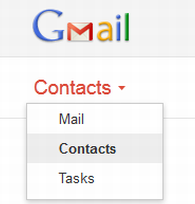
[step 3] Click Mail and select Contacts. Then click Import Contacts…
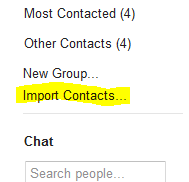
[step 4] Select Browse and navigate to the CSV files you created in [step 1]. Repeat as necessary for all other CSV files you created.
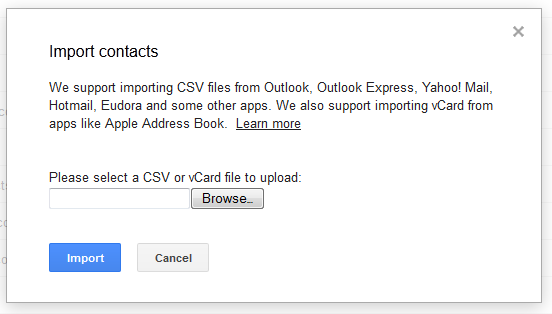
NOTE: for each import operation a new contact group will be created for easy access later.

[step 5] After you’ve imported all of your CSV files, click the Find & merge duplicates link.
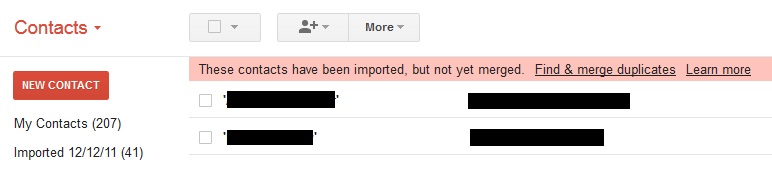
[step 6] Optionally verify your contacts to be merged and deselect any erroneous entries. Then click Merge.
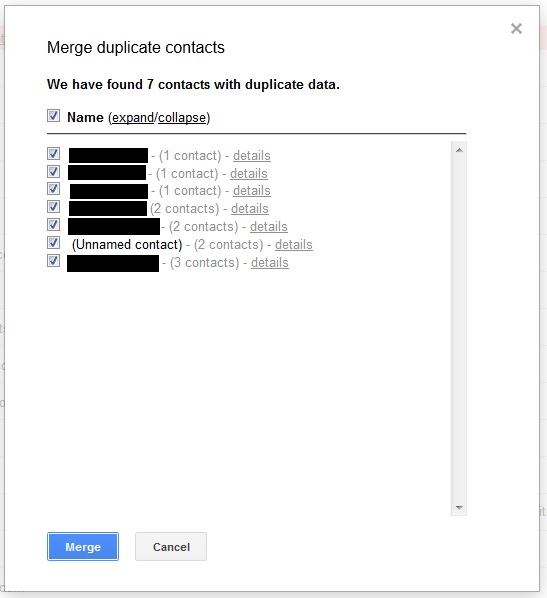
[step 7] Export your merged contacts as a CSV file for Outlook.
In Gmail, click More->Export…
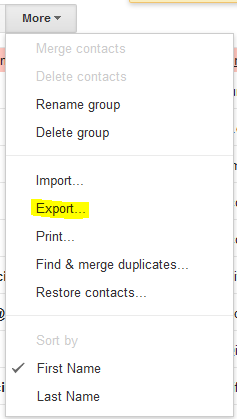
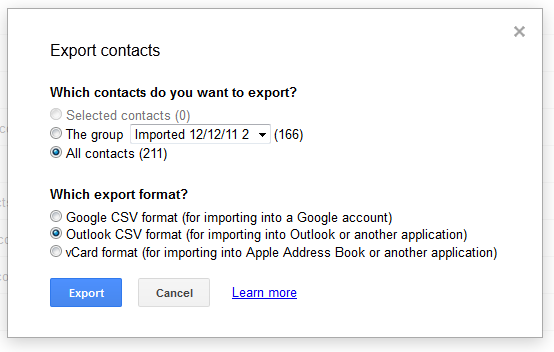
NOTE: the location and file name of your exported merged Gmail contacts CSV file.
[step 8] Import the merged exported Gmail contacts back into Outlook.
NOTE: You may want to delete your existing outlook contacts or move them to a sub folder before importing to avoid creating more duplicates by importing the merged contacts.
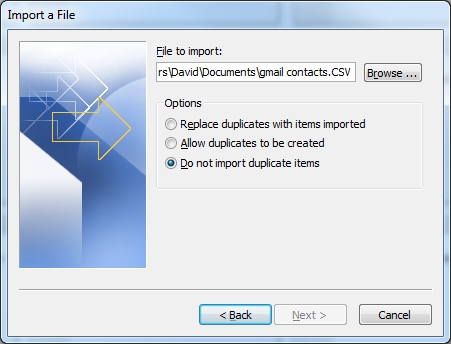
That’s it.
Comments
3 responses to “Merge duplicate Outlook contacts”
Utility to merge contacts in Outlook http://ansura.net/software/outlooksearchandmerge/index.html
This is silly. If you get her email in your duplicated contact while your previous one had her number, you are losing one of them of not both and the girl!
That sucks.