So you have a bunch of contacts on your iPhone and you want to get them into Outlook or vice versa. The contacts I’m talking about here are ones that are not part of a synced account but have accumulated in Microsoft Outlook with a POP3 account for example. Here’s how to do just that:
NOTE: This article has been changed because the iCloud control panel for Windows has been modified by Apple. The original instructions in this article are no longer fully applicable.
[requirements]
- A PC running Microsoft Windows 7 or 8
- Microsoft Outlook (I used 2010)
- iOS 5 and iCloud
[procedure]
[step 1] Open the Settings app on your iPhone or iPad device’s home screen.
[step 2] Tap the iCloud tab.
[step 3] Log in to iCloud using an existing Apple ID or MobileMe account, or create a new account from the screen.
[step 4] Ensure that Contacts are synced with iCloud by flicking the switch beside it to the “on” position.
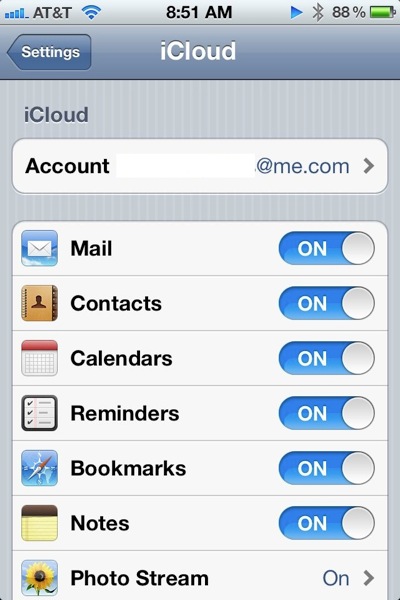
[step 5] Close Microsoft Outlook on your PC. Now download & install the iCloud Control Panel for Windows from Apple’s Website.
[step 6] Open the iCloud from the Start Menu (under All Programs) and sign in with the Apple ID and password.
[step 7] Place a check mark into the box that shows Mail, Contacts, Calendars & Tasks and click Apply.
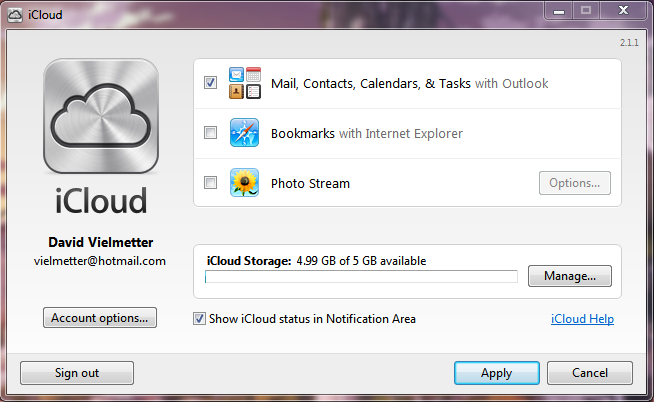
You should notice the following message shortly after clicking the Apply button.
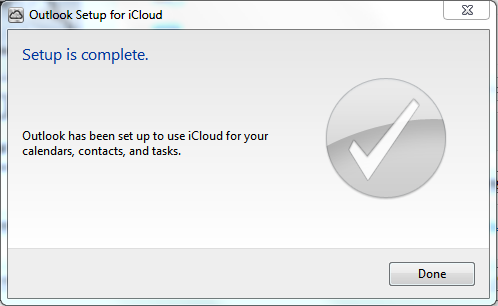
[step 8] Close the iCloud Control Panel and open Microsoft Outlook.
[step 9] Click Contacts on the left hand Navigation pane. Notice the new iCloud contacts items.
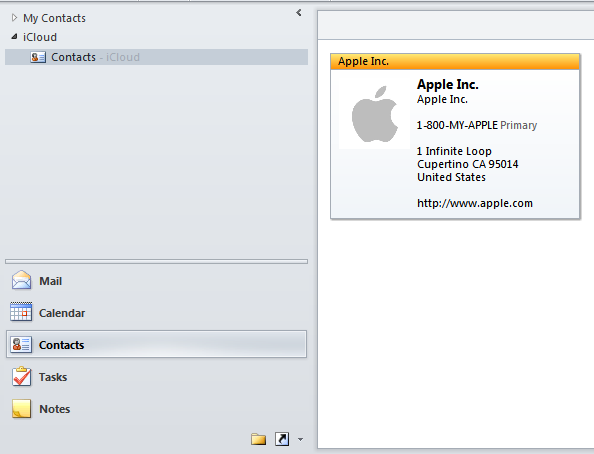
[step 10] Simply select all contacts in this folder and copy them them to any other folder in Outlook or vice versa. The easiest way to do this is CTRL+A to select all, CTRL+C to copy them all to the clipboard, then CTRL+V to past them all into the destination folder after selecting the new location.
That’s it.
–UPDATE– This information is no longer valid. The latest release of the Apple iCloud Control Panel for windows v2.1.1 utilizes a different mechanism to tie into Outlook.
Some of you have been saying that this procedure doesn’t work right on various other system configurations. I’ve tried running the above steps on Windows 7 x64 and Outlook 2010 and Outlook 2007. Both behave identically in the fact that when the iCloud Control Panel is setup to sync JUST CONTACTS, an APLZOD file gets mounted in Outlook which contains your iCloud contacts as shown below:
Outlook 2007:
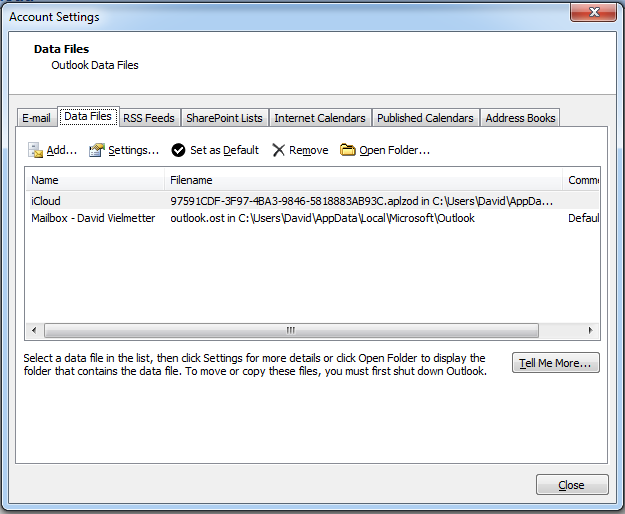
In the Outlook Folder list it looks like this:
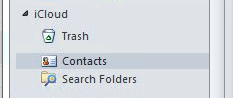
Any Contact you add to this folder will automatically be added to your iCloud. So if you’re wanting to put Outlook contacts on your phone, this is how you can do it…simply copy contacts from your Outlook Contacts folder to the iCloud Contacts folder.
If you’re wanting to import iCloud contacts to Outlook, simply copy contacts from the iCloud Contacts folder to your Outlook Contacts folder.
Troubleshooting:
If you’re getting errors or no contacts are downloading from iCloud and you know you have contacts there, follow these steps:
[trb 1] On your iPad or iPhone go to contacts and select the iCloud contact group. Ensure that you have contacts in this group. If none exist there, then this is why none get imported to Outlook.
[trb 2] Try un-checking the Mail, Contacts, Calendars & Tasks box in the iCloud control panel and click Apply. This will undo the sync between outlook and iCloud control panel. Then click sign out and close the tool. Then try the procedure above again from the beginning.
Comments
116 responses to “Export iCloud contacts to Outlook”
Does this actually copy iCloud contacts to Outlook, or is the iCloud listing visible in Outlook but not actually in a file in Outlook?
Recently I added three new contacts from emails sent to me. These appear to be in Outlook but not in iCloud. I would like these to be in both Outlook (not just visible in Outlook) and iCloud.
It creates a randomly named file in your AppDataLocal directory (in Windows 7):AppDataLocalSOMERANDOMNUMBER-BA2C-SOMERANDOMNUMBER.aplzod
C:Users
It then adds this file as a Data file to your current Outlook profile (you can see it by modifying your account settings and clicking on the Data Files tab).
Outlook understands this file to be just like a PST named iCloud with a single Contacts folder within. That contacts folder will have all of your iCloud contacts and you can then drag and drop any or all of them to your Outlook Mailbox or Personal Folders.
worked like a charm for me from my new iphone!!! this ended up being the only way I could FINALLY!
“export”my contacts from my iphone to my outlook 2010 on my laptop
this worked slicker than deer guts on a door knob!!!!!!!!!!!!
thanks!!!!
HI,
This looks like the way to go for me. I am only concerned about one thing: Does my Outlook then only look to Icloud for mail, contacts and calendars or does it synch (combine) what is in that account with the data that already exists in my Outlook files (which comes from a different email/contact/calendar source)?
David,
Thanks for posting instructions for downloading contacts from iphone/icloud to Outlook. I am unable to duplicate your steps. I’m good until step 7, but I cannot get a screen on my PC in iCloud that looks like your image directly beneath the step 7 instruction. Thus, I cannot locate how to check the Contact box to sync with Outlook on my PC. When I log into icloud on my PC I do not see the screen you have posted beneath your step 7. I am using a PC with Internet explorer version 9, and a Windows Vista: Home Premium platform. Any thoughts?
Doug,
Did you install the Apple iCloud Control panel for windows?
Download here:
http://support.apple.com/kb/DL1455
The only way to get the screenshot in [step 7] is to navigate to Start->Control Panel->iCloud Control Panel. But that’s only going to work if you’ve installed the iCloud Control Panel in the first place…see [step 6].
If you have iCloud Control Panel already installed and you still can’t get to the apple ID login screen, try uninstalling it and re-installing it from Add/Remove Programs.
Hope that helps,
David
Hallo David,
I’m trying to do your procedure but before arriving to step 7, I got a pull-up window stated “Outlook setup for iCloud” —> “Upload all your contacts to iCloud” or Upload some contacts to iCloud” ???
And this is not what I want to do, I want to upload the iCloud contacts to Outlook and not reverse.
Thanks in advance for helping me out.
Greetings, Jelle
Hi Jelle,
Good point, I have not seen this particular message, but the whole point of iCloud Sync for Windows is to SYNC the contacts between outlook and icloud. Do you currently have any contacts in Outlook? In my case it the Icloud for windows tool did not attempt to sync with any outlook contacts, it simply imported the contacts to a separate contacts folder called icloud in office 2010.
I would try clicking “upload some contacts” and see what happens (of course you’ll want to make a backup first). That’s all I can suggest. Good luck.
Me, too. I don’t want to upload to icloud. Their already there. I want to download them into Outlook and it’s not giving me a download option?
I just downloaded and applied all today. But everythign in my Outlook “Contacts” file was deleted. I now find all contacts in the “icloud Contacts” file. It makes me uneasy that everything is gone from my PC’s regular file. What did I do wrong? And then when I synced my phone on my computer (the old-fashioned way with a cord, because I was trying to get all contacts back in the regular “Contacts” file, it deleted everything off my phone!
Hi Stephanie,
I’m sorry to hear that. I have not had this happen when I installed the software as described in this article, but have had some complaints about this happening from other users (see comments). I want to point out that the version of the iCloud tool for windows has been updated since I wrote this article and could function differently now. Although I agree with you that this could be kind of scary, there are some valid reasons why Apple may have changed it software to do this:
If you sync your phone via cable and you have iTunes configured to sync your contacts from outlook to your phone and then you install the iCloud sync tool and it also synced your contacts…you’d have duplicate contacts on your phone. One from your local synced outlook contacts group and one from the iCloud contacts group. Perhaps this is why the new tool moves your contacts.
Here is what you can do to reverse the process:
1. if as you said all the contacts have been moved to your iCloud contacts folder, simply move them back to your default Outlook contacts folder by selecting all with CTRL+A and then dragging them back to your Outlook Contacts folder. When you do this, and then sync, all your contacts will be moved from the iCloud contacts group on your phone to your main contacts group on the phone and in Outlook, they’ll be back in the local contacts folder.
2. as mentioned above, I would not have a copy of all contacts in both your local outlook contacts folder and the iCloud contacts folder…this will likely cause you to have duplicate contacts on your phone.
Hope this helps,
I will put a note in the article warning people as well.
Cheers,
David
I had relatively little trouble accomplishing this–thanks!–but I wound up with a single Contacts directory on my Touch (current version and OS) in place of my ten or twelve contact categories. Is there a way to repair that? (I don’t mind starting over, if that’s involved.)
While I’m at it, here’s my larger question. I use miCal, which connects with the Apple Calendar app. I think that remnants from my Palm days are still haunting the calendar: birthdays. Some of them need alteration and some deletion, but neither is possible in the Touch itself, so I thought I could clean things up in Outlook and then re-import everything. As long as I’m whining, why wouldn’t Outlook make a provision for more information about families than just Spouse, such as spouse’s birthday, children’s names and birthdays, and the like, or is there a workaround for that? I only bought Outlook for this task and have no real familiarity with it.
Sorry to go on. Any wisdom about any of this will be appreciated. I’d settle for returning to pre-Cloud status if that’s even possible. Thanks.
I want to transfer my Outlook contacts to my iPad using iCloud. How do I accomplish this? I understand the iPad to Outlook on PC but not the reverse.
Thank you,
Nieta
Nieta,
You’ll need a Gmail account for this….I suggest signing up for a free new one just for this transaction (to avoid duplicate contacts).
[step 1] Export your Outlook contacts to a CSV file.
[step 2] Log into your Gmail account, click Contacts then Import Contacts…
[step 3] Specify the file you generated in [step 1] and click Import. You should now have a Gmail account with your Outlook contacts.
[step 4] On your iPad, click Settings->Mail, Contacts, Calendars.
[step 5] Click Add Account->Exchange
[step 6] Enter the Email address for the free account you setup, leave the domain field blank, enter the email address again as the username and the gmail account password as your password, type IMPORTED for the description. Then click Next.
[step 7] Enter m.google.com as the Server. Click Next.
[step 8] Turn only Contacts->ON, you can leave Mail and Calendar OFF. Click Save.
[step 9] On iPad click the main button to go to the Home screen and then click Contacts. You’ll now see your imported contacts from the Gmail account in a separate Contact group named IMPORTED.
Any contacts you add to the gmail account will automatically appear on your iPad as long as you leave that account setup.
Hope it helps,
David
this did not work for me – win 7 and outlook 2007 – icloud is set right, all contacts on cloud but will not display in Outlook. Bummer.
the thing is though I got really lucky – for some reason Outlook 7 died Friday night – it took all my contacts and the contacts in the phone with it – luckily I had set up icloud in October so I have a backup on icloud – and contacts are back on the phone, but not in Outlook and I am scared to ever sync again!
Hi Jeffrey,
Thanks for letting me know. I’ll run through the procedure with Win7 and Office 2007 and see if anything different happens. I’ve got lots of backups of my contacts so it’s no big deal…i’ll update the post with what I find in the next few days.
Cheers,
David
THANKS DAVID – WOULD LOVE TO HAVE MY CONTACTS BACK!
I downloaded Outlook 10, same thing – no contacts – even repaired icloud in control panel and reset, same thing, no contacts – but they are at icloud.com fine (and on the phone)
hey sorry hot mess me again – I followed your suggestion about signing out and deleting, then signing in again as I had no icloud folder in Outlook, and that did it!
No problem. I appreciate you posting it. Hopefully it’ll help someone else. I know that the iCloud control panel is a bit buggy…I’ve received lots of emails from others stating that it doesn’t work sometimes.
Thanks again for your update.
Thanks, had a very similar problem and signing out and deleting fixed it. Wish I found this 6 hours ago…waste of an afternoon.
I installed iCloud on desktop PC running Outlook 2007 using your instructions and it went fine. Then I installed iCloud on my laptop, which I forgot was running Outlook 2003, and it obviously didn’t take because iCloud does not support older than 2007.
I upgraded the laptop outlook to 2007, but it was too late as some file somewhere had been corrupted. There was no Icloud folder in my contacts; in fact there were no contacts at all. All the signing in and out, checking and unchecking in the world didn’t make a difference. I even reinstalled iCloud…no improvement.
signing out and deleting fixed everything. I now have an iCloud folder in contacts showing the same content as my PC.
You should post on the Apple forum…I read everything and there are alot of dead ending threads…Apple has not provided an answer.
I’d gladly post the instructions there…You got a link for me on where I should put it?
I am having a similar problem as some of your other posters. I am trying to get the iCloud Control Panel to set up syncing contacts and calendar between my Outlook 2010 (32 bit)and iCloud. I am running Win7 64 bit. When I run the control panel to sync contacts and calendar, the process stops near the end and kicks out an error message “Your setup couldn’t be started because of an unexpected error.” I can see, when logging in icloud.com, that the contacts and calendar are transferred to iCloud. When I open Outlook it does not show any iCloud calender or contacts choices on the left side of the navigation pane when either contacts or calendar is chosen.
The problem seems to be that the process does not create a data store in Outlook of the type that ends in .aplzod
Do you have any ideas David on how to get this data store created?
John,
Unfortunately I don’t know how to add the applzod file to outlook. I guess you could search your hard disk for it and try adding it manually from within outlook. I would try setting up the iCloud control panel to sync just your contacts only and see if that works by itself first.
Then try adding calendar sync. I have not personally tried the calendar sync option with iCloud control panel.
Hi David,
I had this problem 3 or 4 times in a row but I managed to upload my contacts to outlook by just selecting to sync the contacts only and not the calendars. It completed it really quickly and it has loaded them all into the outlook contacts folder, so no separate icloud folder in my outlook.
It all looks ok so far! fingers crossed.
Thanks for these instructions they were a godsend!!
Andrea
I had iCloud installed on Outlook 2010 and my 3gs with IOS5. All of my contact lists were uploaded to my phone. When IOS5.2 came out a few weeks ago, it wreaked havoc on my Outlook and iTunes, so I had to back out and restore the previous version of IOS5. I turned off iCloud on Outlook because I could no longer access the contact lists on the icloud secton in Outlook 2010. Now I have an issue where I’ve screwed up one of my contact lists (long story,but it involves Publisher 2010), so I would like to restore the still good contact list on m iPhone back into Outlook. All of the contact records are still on Outlook, but they are all missing the email address – which is still on the iCloud records. I need to merge the two. I followed the steps above, but the only option that I get is to upload FROM Outlook to the iCloud, not the other way around. If I do that then I am assuming that I will lose all of the emails address that I’m trying to restore, since the email field in the from file (Outlook) is blank. I’m using Win 7 Pro 64 bit, Outlook 2010. I’ve managed to get around this by reseting up icloud, telling it to NOT upload by unchecking the boxes for all contact lists and tasks and calendar and pointing to the icloud contact list to send my emails, so it downloaded from icloud only – but I know have TWO versions of the contact list in outlook. One is the outlook version without the email addresses and one is the icloud version with the email adddresses. I renamed the icloud version so that when I select which files to send to I can tell which one is the icloud version. But I sure would like to be able to get ONE version that is synced. I hope that I didn’t lose you in all of this attempt to explain my issue!
In my experience with iCloud control panel for windows, when working and properly integrated with windows, you’ll just see a folder called iCloud with a single Contacts folder in it. It doesn’t actually synchronize with your outlook contacts after installing the iCloud control panel…the only thing that could be doing that is iTunes.
When you’re using the iCloud Control Panel for Windows, that iCloud->Contacts folder in outlook is always in sync with your iPhone/iPad. That means when you create a new contact in the iCloud contact group on your iPhone, it’ll show up in iCloud->Contacts in Outlook. Conversely when you copy a contact to the iCloud->Contacts folder in Outlook, it’ll appear on your iPhone in the iCloud Contacts group.
I know this can get confusing especially with all the mentions of iCloud and contacts folders. Hope that helps.
in my outlook address box the contacts list is now empty – everything is in icloud and it is sharing well with my iphone and ipad BUT when Im sending email from my pc, it is not autimpatically picking up the contact addresses and adding them as I type in the names.
If I get an email from someone new, I can select to save that contact – in my contacts folder – not my icloud contacts
the whole system is v messy – basically I want to get all my contacts out of icloud and back into outlook contacts then turn off the icloud contact sharing account all together
can you help me please
The iCloud control panel does not move contacts from outlook. You must have done that yourself somehow. All the iCloud control panel does is mount a folder in the “Folder List” in Outlook with one Contacts folder that contains all of your iCloud contacts in it. You can select all of these contacts and copy them anywhere in Outlook (that is any other folder in your Folder list – including your default contacts folder). Just be careful when dragging and dropping contacts. You’re likely moving them when you drag and drop. The old CTRL+A (Select all), CTRL+C (Copy) and CTRL+V (works best) if you just want to copy your iCloud contacts back to your default outlook contacts folder.
You ARE THE BOMB , THANKS!!!
TNX a billion! A really good guide!!!!
Hi, I have tried following you steps to sync contacts and calendars to outlook, but I cant seem to get it to work. Mail syncs fine, but i cant get contacts and calendars to sync
Hi Daniel,
The article doesn’t explain how to sync your contacts to outlook, it simply explains how to get your icloud contacts into Outlook (but not your default contacts folder) and keep them synced once they are there. The problem with the iCloud sync tool from Apple is that it doesn’t do anything with your existing Outlook contacts. It simply creates a folder in the Outlook Folder list (click it to expand all your outlook folders) called iCloud, then to make matters more confusing, it creates a folder called Contacts within the iCloud folder. This folder contains all of your iCloud contacts and acts like a synced extension of your iCloud contacts. Copy contacts to this (iCloud->Contacts) folder from your default Outlook contacts folder, and the contacts will appear on your iPhone/iPad and vice versa.
Hope that helps,
David
Great posting! It solved my problem.
Also very well explained
Hi, after reading all of the above I’m the only one with the following problem.
After running the iCloud installer and select all sync options (Email, Contacts, etc) I pressed Apply, just like in “Step [7]” iCloud started configuring BUT instead I received and error message telling me something about the process was incomplete, I selected retry and the process was completed.
My ME account was added to Outlook, the Photo Stream, favorites Sync works fine, But no contact or Calendar sync with Outlook. Also I don´t see the Icloud folder with the contact subfolder.
I tried everything like: Uninstalling (Outlook, iCloud & Itunes) and installing everything again, deselect the contact option on iCloud and select it again, etc, etc.
Any ideas?????
Running on Windows 7 64 bit, Outlook 2007.
Andres
Thank you SO MUCH!
My hard drive died so I only had my extensive contacts list on my iphone and could not work out how to get them back. This worked so well 🙂
Very helpful indeed, many thanks for your efforts
Super!!! Thanks a lot 🙂
hello when using icloud control panel to send my contacts to outlook im getting this message ‘your setup couldnt be started because of an unexpectecd error’
im using outlook 2010 64 bit
thx for helping
I would try:
1. close outlook.
2. click start->control panel->icloud and sign out.
3. uninstall icloud control panel.
4. install icloud control panel again (make sure it is the latest version).
5. start outlook and try again.
David
Is there an iCloud control panel that will work in Windows XP
iCloud control panel should work on windows 7 and XP
Thanks David for your quick response. Sad to say the iCloud Control Panel will only work on Windows VISTA and later versions. XP is NOT SUPPORTED.
Carl,
Thanks for clarifying. Honestly, I had never tried it on XP, and just assumed that it would work…so that’s good to know and thanks for the update.
David
Thanks a lot, it worked.
Rajan
So what you are saying is that it is impossible to SYNCH the contact folder in Outlook 2010 64 bit with iCloud or vice versa… what on earth is the use of that?
I did all the above and my Outlook Contacts Folder was emptied into the iCloud Contact Folder that magically appeared. So now I have an empty Outlook Contacts folder. Similar with the Calendar application, if I want stuff to appear in iCloud so it is available on iPad and iPhone then it has to be added in iCloud since Outlook Calendar sullenly refuses to transfer stuff to iClould after the first transfer via the Control Panel.
So it is no good when using Outlook to generate business activity which what it is supposed to be there for as activities and other diary entries default to the Outlook Calender NOT the iCloud calendar of course – unless there is a way to make Outlook default to iCloud Contacts and Calendar – is there…??????
Surely someone has told Apple about this?
Surely I’m not the only Outlook user using 64 bit (which all new machines come built as) who finds themselves inconvenienced like this?
Rex,
You are correct about there not being a way to sync the default outlook contacts folder with the iCloud control panel. Your contacts should not have been automatically removed from the default outlook contacts folder simply by installing the iCloud control panel. This did not happen in any of my test cases.
There is a valid reason the iCloud control panel does not sync your default outlook contacts:
If you are using exchange, your iPhone or iPad can sync your default contacts via active sync…so you wouldn’t want iCloud to interfere with that or create duplicates.
If you want continuous synced contacts between your email and phone, try gmail.
my outlook 2007 on my pc did remove all my pst files default contacts folder and created an icloud …contacts in icloud folder. Problem is: i had 3 contact groups in OUtlook…one for xmas card 2009, xmas card 2010, and main contact folder. When i went to the cloud with contacts it added all of contact groups…so 70 some contacts are now in triplicate. I tried deleting the i cloud xmas card 2009 contact group from the outlook list…the list title was gone but not the contacts..still all there. Then i went to tools…address book…chose xmas card 2009 list from drop down and selected all in the group and deleted them. In tools.address book.now xmas card 2009 appears empty. BUT i can still search in the address search field in outlook and the 3 new icloud contacts are there for everyone originally in my xmas card groups…It’s a mess…..can i turn off “contact to icloud” on my pc and restore my contacts with my old blackberry destop manager? And then can i icloud my iphone and ipad….and update outlook by connecting either ipad/iphone direct to the computer to update my contacts…thus keeping them in the .pst file format??? It’s Easter and i’m freaking out 🙁
Sarah,
Before you do anything, duplicate contacts in the address book is an issue that is easily resolved and it has nothing or little to do with the iCloud control panel. By default the iCloud control panel is added to the address book and so you may see duplicate contacts because some of the contacts on your iPhone already exist in outlook. To resolve this issue, please do the following:
1. Go to outlook and open your address book.
2. In the address book click Tools->Options.
3. In the Addressing Dialog notice how several sources for addresses are listed! You can select the custom radio button here and add or remove any sources you’d like here. Additionally you can also select the order of preference for any source…so if your iCloud contacts folder contains duplicates, just remove it from this list…boom done.
Other than that, you are the second person to mention that after installing iCloud control panel, contacts from the default contacts folder were automatically moved to the iCloud contacts folder. In my testing this has not been the case, but there could be a new version of iCloud contacts that does this that has been released since I’ve done my tutorial.
Long story short, to get back to where you left off, will be a somewhat complicated procedure. First off, you’ll need to make sure that your default contacts folder has all of your contacts (still or again by copying them back from the iCloud contacts folder). Additionally you’ll want to make sure you have all of your contact groups in the default outlook contacts folder…i.e. please check to make sure that outlook still contains all of your contact items and contact groups (the address book pulls from default contact folders in outlook). When you’ve verified all that:
1. Go to control panel and double click the iCloud control panel icon there…it may take a minute to come up.
2. Uncheck the box next to contacts and click Apply.
3. Click the Sign out button.
4. Uninstall iCloud control panel from Add/Remove programs.
Now you should be back where you were before the iCloud control panel was installed. Your address book should no longer have the iCloud source so you will probably no longer see duplicates. If you do, then your default contacts folder had those duplicates or you are including another contact source in your address book that is causing this. See my instructions for cleaning up the address book above.
Cheers,
David
Hi David
Google lead me to your info on how to sync contacts from iPad/iCloud to outlook. I followed the steps to upload this to my new laptop keeping fingers and toes crossed as all other backups had died with the old computer. For a second I was thrilled – all contacts appeared in outlook. When I copied them from the iCloud folder in outlook as suggested the copying seemed to go fine and the all contacts disappeared. they are no longer in iCloud neither can I find them on my computer! Devasted!! Can you help??
P.S. also since i copied the files, outlook will no longer send/receive on my laptop – have tried resetting mail account to no avail
🙁
Hmm. Well if they were present but now are not, perhaps they did copy but somehow now you are not authenticating with the iCloud properly. Try signing out and back in.
Hi David,
Thank you for the continued postings! I read through all of them. Mostly seems pretty straight forward re: copying icloud contacts back into the outlook contacts file so that all contacts appear on icloud devices (e.g. iPad, on servers in the icloud itself, in the icloud folder on the PC) AND on PC devices (e.g. in the main outlook folder, on devices synced with it such as blackberries). But once this is done statically (i.e. one shot deal), how do you maintain synchronization?
In other words, it is easy to see how adding or deleting a contact(s) from any icloud device will be synchronized with other iPad devices. And similarly, it is easy to how contact(s) among “PC devices” can remain in sync. But do you have any recommendations of how to maintain synchronization between the two disparate systems (iCloud and PC devices)? It seems that a tedious process is to make note of every change and manually move over that change from one system to another. On the other extreme would be to do a mass copy of the contact DBs in both systems back and forth, but I fear that this would create mass duplication of contacts.
Recommendation(s) appreciated. Final question: to your knowledge, does all of the same apply to handling calendar events as well?
Thanks,
Bob
Hi Bob,
Contacts and keeping them organized and in sync can get complicated fast and iCloud + iCloud sync isn’t necessarily your answer.
The iCloud control panel is simply one way to get contacts from your computer (outlook) to your mobile device (iPhone or iPad) but you are correct, that it does not keep synching contacts with your default outlook contacts folder. Only the iCloud contacts folder in outlook is kept in sync. This is a problem if you’re expecting new contacts to be available everywhere once you create them in your default outlook contacts folder.
The question you want to ask yourself is, where do you create your contacts most often? If the answer is directly on your mobile device, then Gmail may be the answer. If the answer is Outlook, then we’ll need to get more creative. There is at the moment no utility from Apple or Google that will sync outlook contacts to your mobile device over the air continuously…even blackberry needs the desktop manager for this.
One option if Outlook is your primary contact creating platform is Contact Sync http://www.pppindia.com/contacts-sync/ (free software I used years ago). This may work for you, but you’ll need to do some research into how it works and if it can work for you.
If you create lots of contacts on your mobile device and just want to have them synced amongst other devices, then gmail or iCloud may be your best bet.
Gmail accounts can be added to your iPhone and iPad and Blackberry device using an exchange (or activesync) profile (see my tutorial on that here: https://davidvielmetter.com/tricks/howto-sync-gmail-contacts-and-calendar-on-the-iphone-or-ipod-touch/) and once added, any contact or calendar event added from:
1. your iPhone or
2. your iPad or
3. your Blackberry or
4. your Gmail or GCalendar account
will be available immediately on all devices.
Hope that helps,
David
I tried this but I must be missing something. On Outlook I have icloud listed and trash and search folders. I do NOT have a contacts folder listed below icloud. I do, if I select icloud contacts, have all my contacts listed but there are none listed in outlook (unless they are one in the same, that is).
Tony,
You are experiencing a common issue people have with outlook. The problem is with understanding how views work in Outlook. When you click the “Contacts” button on the left hand menu in Outlook, you’ll see all contact folders grouped together (no matter what personal folders they may be in). So if you see an iCloud folder in this view with a subheading called “Contacts – iCloud”, then this is the location of your iCloud contacts.
If, however you click the Mail button, you may still see an iCloud folder but no Contact subfolder…why? Because Microsoft designed this view to only show mail folders (without telling you that you are only viewing mail folders). It is a UX design flaw (or poor design to begin with) depending on how you see it. That is why I use the folder list view. It does not filter out any items.
If you’d like to see the “Contacts” folder as a subheading of the iCloud folder in the “Folder List” you’ll need to be in the “Folder List View” fist. You can enter this view by clicking the folder list button (normally a small button at the bottom of the left had Outlook navigation bar. Once in this view, you’ll see all folders part of the iCloud folder, not just the mail folders.
David
I am so glad I came upon this website.
I “lost” all my data on Outlook but still had my contacts in the cloud.
I followed the instructions, and event though the pop ups only talked about “uploading from outlook to icloud” all my contacts and calendars that were in icloud, were put into my outlook.
this information saved my bacon – worked exactly as you stated – PERFECT!
Hi
I just followed most of the previous conversations and would like to add a point about the syncing behaviour.
After you download, install and run the windows Icloud control panel you will have the option to sync your contacts. The options presented to you after you tick the contacts box and press apply is to upload all your Outlook contacts or choose which ones to upload. Choose the ‘choose which ones to upload’. This will then provide you an option to untick the list of contacts that currently reside in your outlook profile (you may have one or many) and will happily then perform a sync from Icloud to Outlook without uploading any contacts from outlook to iCloud. As previously mentioned it will then create a ‘contacts in iCloud’ item in Outlook.
Thanks for clarifying Ian. Much appreciated.
Mate,
Thank you so much. This was helpful. I’ve lost all my contacts when I tried to merge my contacts with Gmail and was worried. Now they are all back.
Trevor
Awesome mate thank you thank you thank you.
Save me a lot of time.
Metai
Takes forever for Outlook to open after following this process. No errors, but the splash screen just sits there saying “Processing”. It’s still in that state as I type this message. Anyone run into this issue?
Thanks,
Sanju
This can happen to outlook if it wasn’t fully finished closing the last time before you re-open the software. Typically when you close Oulook a small grey outlook icon appears in your notification area for a little while and may remain there for a bit after the Outlook window has disappeared. This is outlook closing your large PST file in the background. If you open Outlook again before this grey icon has disappeared, you can run into the issue you describe where outlook will not start and get stuck at the splash screen.
To resolve this issue, ensure that all instances of OUTLOOK.EXE are terminated. Open your task manager and locate any OUTLOOK.EXE processes and end them manually, then start Outlook again. It should open right up for you.
If this does not resolve the issue, you may want to try unchecking the sync contacts checkbox in the iCloud control panel and even perhaps try uninstalling the iCloud control panel to see if this resolves the issue.
Hope this helps,
David
I went old school and just rebooted my computer and the problem went away. However I do not see any contacts under the Folder iCloud. Only “Trash” and “Search Folders”. I am going to give it another go and see what happens.
Thanks,
Sanju
Sanju,
Thanks for the update. I’m sure other readers who run into the same issue will appreciate it.
David
BTW, I had ensured Outlook was completely shutdown before running the procedure. I had confirmed looking at the task manager and it was not running.
Best,
Sanju
Thanks again for specifying what steps you took. Every bit helps. Good to know that outlook was closed completely before you started.
Thanks a lot for your procedure it worked very well for me. Had to uninstall icloud.
The installations must occured in the correct order :
1. Outlook 2007
2. iCloud
Such a pleasure !!!
Windows 7
iPhone OS 5.0.1
Outlook 2007
This worked for me.
I did have to uninstall iCloud and reinstall.
It added contacts back into Outlook – thank you.
I do want to have contacts in both iCloud and Outlook.
How do I do this?
What did you mean with:
If for any reason you close the iCloud folder in Outlook, you won’t be able to add it back since it is NOT a PST. I had to sign out of the iCloud Control Panel and select the DELETE option, then repeat from [step 6]?
What did you DELETE?
I have the same doubt above: I want iCloud data back on my Outlook.
My iCloud Contacts apear as zero at the iCloud Panel but I have plenty of contacts on phone?!!?!
Sorry Zef, I think I didn’t remember correctly that I actually uninstalled the iCloud control panel, not just signed out and back in. When I uninstalled the iCloud Control Panel, it asked me if I wanted to delete any local contacts and I chose to do that.
Hope it helps,
David
Thank you SOOOO MUCH!
this worked like a charm, I had to choose to upload “some” vs. all but then it worked.
Hi David,
My Icloud Control Panel does not have the option of ‘Contracts with outlook’ insead it groups ‘Mail,Contacts, Calender, remainders and notes and says these are available at icloud.com. Do you know how I can get it to shows how you have it?
Thanks, Nathan Fell
Wow – best option ever. Thanks for posting this. I was pulling my hair out!
Excellent! Very helpful!! Many thanks!
Thanks for the instructions, it worked perfectly….with the exception that now I have no contacts listed in my outlook address book….so those contacts that I had besides my iphone contacts have been deleted…..what did I do wrong and how can I get them back?
Shirl,
You probably moved the contacts instead of copying them. Go to your iphone contacts folder and select all of your contacts and copy them to your clipboard using CTRL + C, then click on your main outlook contacts folder and press CTRL + V to copy them there.
David.
Thanks for this detailed and useful explanation. I could recover my contacts.
Hi ,
i have a doubt or problem u can say it,
i have a iphone 4 n my wifey has the same,we have only one laptop,
we update our icloud accounts regularly
wen i tried to sync with outlook express it did if fine with my account n i signed out
even i did the same with my wifey’s account but now when i again logged my icloud account all my contacts n calender r mixed up with my wifeys contacts n calender. wat can b done to make two different icloud account with different outlook contacts.
for example i had some 400 contacts n 80 calencder entry n my wife had 250 contacts n 25 calender entries i sync them n see my iphone 650contacts n 115 calender entries
what can b done to resolve this issue
pls mail me if u can
adarsh
Adarsh,
Ah, i see what happened. perhaps creating two separate outlook identities for you and your wife would have prevented this. Are the contacts mixed up in outlook express or on your iPhone or both?
Unfortunately I don’t know of an easy way to remove contacts that whew accidentally synced. Same with calendar events. Outlook cannot distinguish your contacts from your wife’s. you’ll likely have to delete them manually.
Sorry about that.
Cheers,
David.
hey this really worked. i could download my all icloud contacts
thanks
David,
The instructions worked like a charm. Thank you so much! Following on what I think was one of the prior questions, all of the data (calendar, contacts) has “iCloud” written in blue next to the title (e.g. Calendar) in the list. None of it shows up in the Outlook Data file section. I tried copying it as you previously suggested but the copy is static- it does not reflect any additions or deletions that I make. Also, I notice that the Find feature won’t work as it is pointed toward the Outlook data file and will not point to the iCloud files. Any suggestions?
To query your iCloud contacts, you’ll need to include them in your outlook address book. To do this open the Address book and in settings make sure that the iCloud contacts folder is in the list in addition to your outlook contacts and suggested contacts.
Once set, outlook will use contacts in iCloud to complete addresses and you’ll be able to search.
Cheers,
David
David,
Because of iMessage I have started changing the phone type of those that have iPhones to iPhone in Contacts on my phone. Because of some of the problems encountered above, I am still syncing via the USB cable to my Contacts in Outlook (although I do have an old copy in iCloud). However, in neither of those folders does the field iPhone show up. Is there any way of showing the iPhone field in Contacts in Outlook?
Cheers,
Bill
Hi David
I was so relieved to see your post describing how to get back contacts from iCloud into Outlook, and was following your steps faithfully until I reached the point where I should check the “Contacts” button on my iCloud Control Panel – no such button! I only have buttons for “Bookmarks” and “Photostream”, and cannot seem to find a way of accessing the other “services”. Do you have any ideas?
I backed up my addressbook to iCloud some time ago, and didn’t really realise the significance of the fact that I had to go to the iCloud contacts in Outlook – just a nuisance, but no problem. I now have a new hard drive, have re-installed Outlook etc, linked to my old .pst file, but no contacts. Having read these websites I now see why! No suitable back-ups available from before I got mixed up with iCloud!
Can you help?
Peter
Hi Peter,
Perhaps apple released a new version that does not have this functionality. I will have to check on this.
What version of Microsoft Outlook are you running on your computer?
Cheers,
David
Peter,
Turns out the new version of the iCloud tool does not have a separate checkbox for Contacts like previous versions did. The latest version only has a checkbox for Mail, Contacts, Calendars & Tasks.
I’ve revised the instructions in this article for the new tool.
Hope it helps,
David
Hi,
I have just come across this article and noticed the following quote in a post above “If for any reason you close the iCloud folder in Outlook, you won’t be able to add it back since it is NOT a PST”. I can’t find a reference in your article to this information, so I’m not sure if it was deleted when you updated for the newer iCloud software. However it describes my problem exactly. In an attempt to ‘tidy up’ my outlook, I (stupidly) deleted the iCloud mail folder hoping the data file would stay and I would still have access to my iCloud calendar. However this was not the case and now the whole lot has been removed from outlook.
If I right click on iCloud control panel and open it I get the following message as soon as the iCloud window appears ‘We’re sorry, but Outlook has run into an error that is preventing it from working correctly. Outlook will need to be closed as a result. Would you like us to repair now?’ I have clicked repair, but it didn’t help. Signing in and out of iCloud generates the same message and I get no options to delete anything.
If I open Outlook and try to add a new data file, iCloud is not an option. But the add in is still installed even though it is not visible on the Outlook ribbon.
I have uninstalled iCloud, uninstalled outlook, reinstalled outlook and reinstalled iCloud, but this did not help.
I found my ‘C5BE2E3E-F12E-443E-B498-7A541AB1CA12.aplzod’ folder in the recycle bin and restored it. This only contains 2 files which are main.db and alarms.db. After doing this, iCloud still responds the same when I open the control panel, but now iCloud has reappeared as an option for Outlook data files. If I create one of these data files and then try to expand it in Outlook I get the following message ‘The set of folders cannot be opened. The information store could not be opened’. I tried to repair Outlook and reinstall iCloud at this point, but again this did not work.
It seems like iCloud thinks that it is still installed, but Outlook is lacking the files it needs. Is there a file I need to delete somewhere which will make iCloud think that the Outlook mail data file is not installed, allowing it to do a new clean install.
Have you got any ideas? (sorry for the long post, but I thought it would be best to describe everything I have done.)
I am using Windows 7, Outlook 2013 and iCloud 2.1.1.
Hi Sam,
You could try to re-add the aplzod file you restored to Outlook. To do this, open Outlook and click File->Info->Account Settings->Account Settings, then click the Data Files tab. Now click Add..->iCloud and hopefully it’ll let you navigate to your aplzod file.
If this doesn’t work, I would try signing out of the icloud control panel and uninstall it completely. Then re-install it from scratch on your computer. This should work also.
Cheers,
David
Cheers for the reply.
When I try to add a data file and select iCloud I get a pop up telling me to configure Outlook using the iCloud control panel. If I restore the iCloud data file from the recycle bin first and then add an iCloud data file in Outlook it just creates a blank data file and I have no option to navigate anywhere.
I have tried reinstalling iCloud 4 or 5 times now and get the same results every time! When it is reinstalled I open iCloud Control Panel and it immediately tells me that there is a problem with outlook and offers to repair it.
If I could only get it to reinstall the Outlook add on and data then I think I would be OK, but iCloud seems to think that the data file is corrupt. Do you know where iCloud adds all of the mail account/outlook data when it installs the add on (I presume this is in a number of places, not just ‘C:UsersSamAppDataLocal’)? I can only think that there is perhaps a file or registry entry that does not get removed when I uninstall and then prevents a clean install afterwards.
I can’t believe that deleting the mail account by accident is so hard to recover from!
Thanks for your help.
David,
Problem solved! (You can delete my last message)
I uninstalled iCloud. It’s quite a tidy uninstall and removes most traces from both the C: drive and the registry. I then did a repair on MS Office.
I went to ‘C:ProgramDataAppleInstaller CacheiCloud Control Panel 2.1.0.39’ on my computer and double clicked the .msi file to install the previous version of iCloud. When this was complete, I used the .exe file at the following link ‘C:Program Files (x86)Apple Software Update’. This triggered iCloud to update itself to version 2.1.1.
When I opened iCloud Control Panel it said there was an installation problem and prompted me to repair it. I did this and then I had my Outlook data file back! The only issue remaining was to reactivate the Outlook iCloud Add In which had vanished. In Outlook I selected file>options>addins>go. I then navigated to ‘C:Program FilesCommon FilesAppleInternet Services’ and selected APLZOD6432.dll. Sorted and only took 2 days!!!
Hope this can help somebody else.
Thank you for sharing your solution. Much appreciated.
David
Hi David,
Any idea of how I can clean my address book? I have on my left side in Outlook I see Contacts – Outlook
Sub categories
Contacts- Icloud
Subcategories
Contacts- personal folder.
However the contacts are all jazzed up, duplicates within the sub-files, half information on some contact cards.. Is there a way to correct without going through all 20,000 contacts in the three folders. Thanks.
Cleaning up your contacts can be an arduous task. I have a way to remove duplicates, but it’s an involved process I describe here. Give it a shot if you’re up for it, but back your stuff up first:
https://davidvielmetter.com/tricks/merge-duplicate-outlook-contacts/
Cheers,
David